XLOOKUP() is the newest function in Excel’s group of basic lookup functions, which also includes LOOKUP(), VLOOKUP(), HLOOKUP(), and now XLOOKUP(). It has many benefits, including more features and more options.
First, we’ll talk about what the XLOOKUP() Excel function does and why it’s better than older lookup functions. Then, we’ll look at its basic code. Finally, we’ll get to the point: how to use the XLOOKUP() function with more than one criteria.
Why Use XLOOKUP() in Excel
When you call XLOOKUP(), it searches a range or collection of data and gives you back the first matching result. If XLOOKUP() doesn’t find a match, it can return a close match when a specific match type is given. The Excel XLOOKUP() function is better than the VLOOKUP(), HLOOKUP(), and LOOKUP() functions in many ways.
Specifically, it lets:
- Search for data horizontally or vertically and use more than one search criteria.
- Find an exact match, partial match, multiple columns and rows, or return modified text when no match is found.
- The XLOOKUP() function also works faster than Excel’s older lookup tools, which is important when searching through large amounts of data.
XLOOKUP Formula in Excel
=XLOOKUP(lookup_value, lookup_array, return_array, [if _not_found], [match_mode], [search_mode])XLOOKUP Formula Explanation
=XLOOKUP(search for this value, in this range, and Return a match from this range).Benefits of Using XLOOKUP
- Versatility: XLOOKUP supports both vertical and horizontal lookups, so you don’t need separate VLOOKUP and HLOOKUP functions.
- No Column Index Requirement: Unlike VLOOKUP, which requires a column index number, XLOOKUP allows you to specify the return array directly.
- Error Handling: The [if_not_found] argument provides an easy way to manage missing values and lookup errors.
- Search Modes: XLOOKUP includes several search modes, including binary search, which can improve performance when working with sorted data.
- Wildcard Support: XLOOKUP provides wildcard matching, making it easier to perform flexible searches when you don’t know the exact value.
Examples of XLOOKUP
Here are the useful uses of XLOOKUP:
Exact Match
By default, Excel 365/2021‘s XLOOKUP function provides an exact match.
- The XLOOKUP code below retrieves the value 53 (first argument) from the range B3:B9 (second argument).
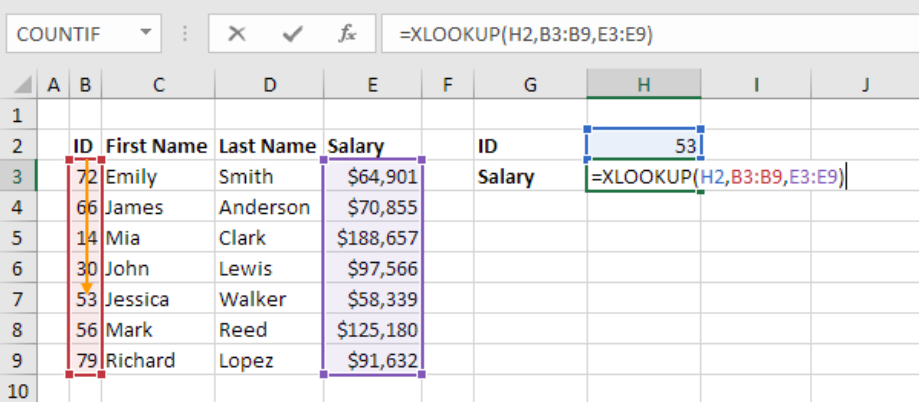
2. It then just gives the value in the same row from E3 to E9 (third argument).

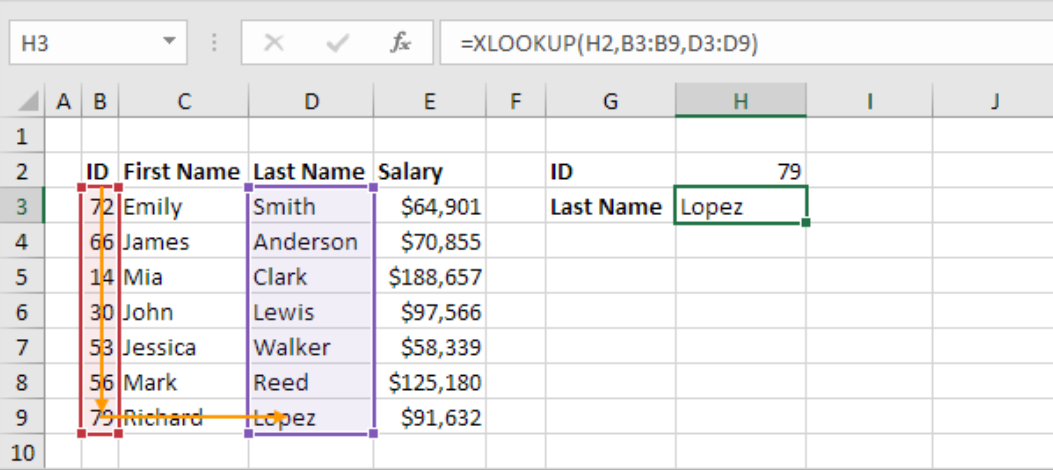
3. Here’s another case. Instead of giving the pay, the XLOOKUP method below gives the last name (change E3:E9 with D3:D9) of ID 79.
Not Found In XLookup
The XLOOKUP method produces a #N/A error if it is unable to locate a match.
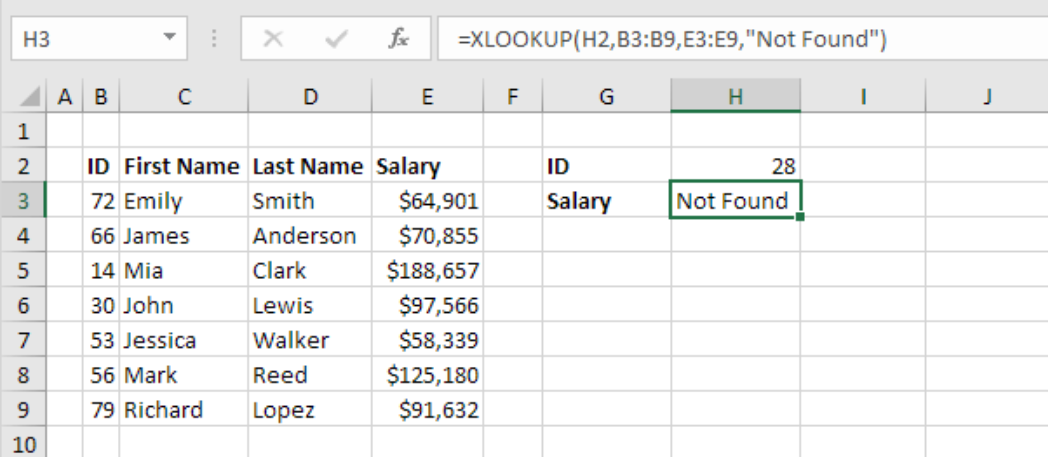
- The XLOOKUP method below, for instance, is unable to locate the number 28 in the range B3:B9.

2. Use the XLOOKUP function’s fourth argument to substitute a pleasant message for the #N/A error.
Approximate Match In Xlookup
Let’s see an instance of the approximate match mode of the XLOOKUP function.
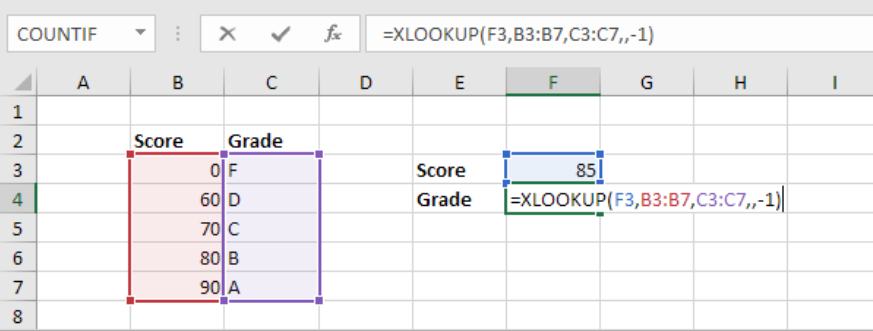
- The XLOOKUP code below searches the range B3:B7 (second argument) for the number 85 (first argument). There is only one issue. This range does not contain the value 85.
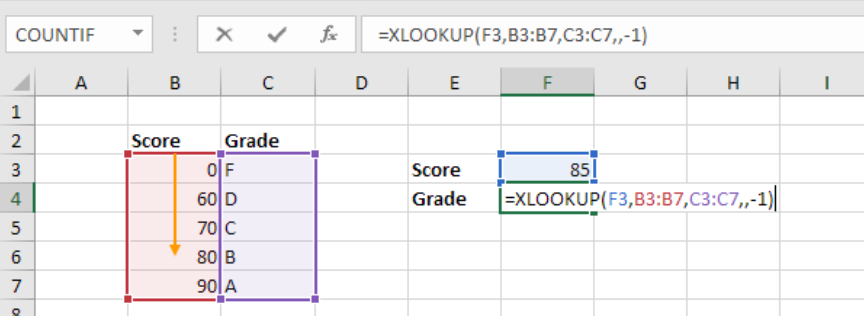
2. Thankfully, the XLOOKUP function is instructed to find the next smaller value by the value -1 (the fifth argument). The value in this instance is 80.
3. The value in the same row from the range C3:C7 (third argument) is then simply returned.
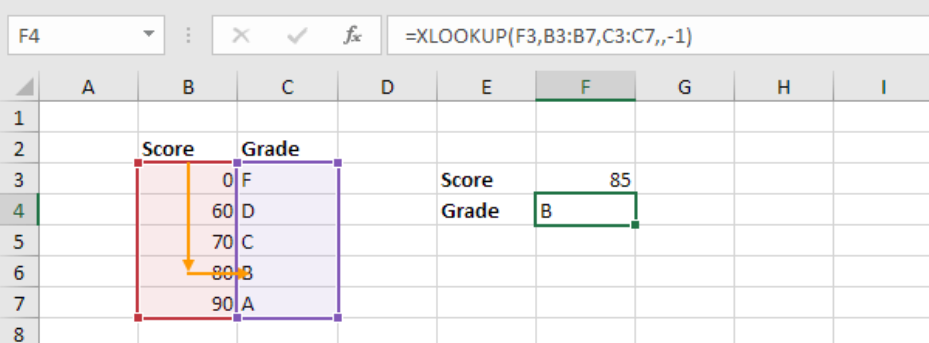
Note: To find the next larger value, substitute 1 for -1 in the fifth argument. The value in this instance is 90. Unsorted data can also be used with the XLOOKUP function. Sorting the scores in ascending order is not necessary in this case.
Multiple Values in Xlookup
Excel 365/2021‘s XLOOKUP function can return more than one value.
1. Initially, the XLOOKUP function below retrieves the first name from the ID (nothing new). Simple XLOOKUP function
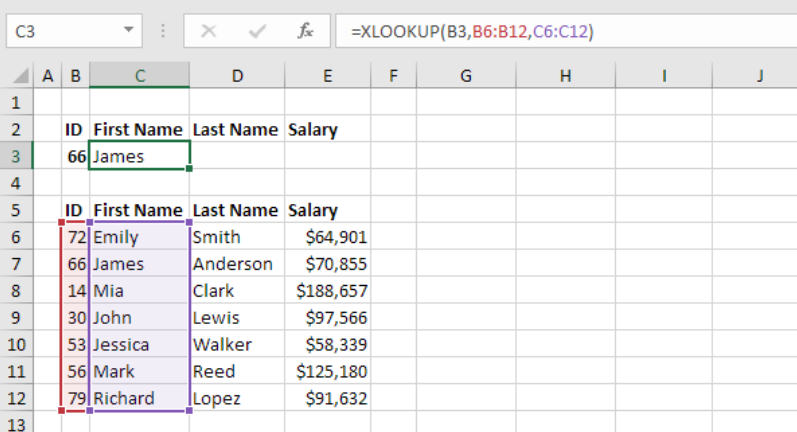
2. To get the first name, last name, and salary, change C6:C12 to C6:E12.

Note: Several cells are filled when the XLOOKUP function is entered into cell C3. Whoa, this Excel 365/2021 behavior is known as spilling.
XLOOKUP Vs VLOOKUP
XLOOKUP and VLOOKUP both help you find data in Excel, but they work a little differently and offer different levels of flexibility.
| Feature | XLOOKUP | VLOOKUP |
|---|---|---|
| Lookup Type | More versatile, handles both vertical and horizontal lookups. | Primarily for vertical lookups. |
| Syntax | Easier syntax, with no need to specify column numbers. | Requires specifying column index, which can be cumbersome. |
| Error Handling | Built-in error handling with custom error messages. | Basic error handling using the “IFERROR” function. |
| Search Flexibility | Supports wildcards for flexible searches. | Defaults to exact matches; requires extra steps for approximate matches. |
| Return Values | Can return arrays of values. | Returns a single value, not suitable for multiple matches. |
| Dataset Compatibility | Works well with large datasets and dynamic arrays. | Limited to simpler tasks and smaller datasets. |
| Overall | More user-friendly and powerful, especially for complex tasks. | Simpler but has limitations. |
Note: XLOOKUP is more flexible and easier to use, especially when working with complex data or multiple columns and rows.