
If a value meets a certain condition, the SUMIF function in Excel will add up all the numbers in a range that the user has chosen. Dates, numbers, and text strings can all be used to test the defined criterion.
What is the SUMIF Function?
Microsoft Excel’s SUMIF function is a powerful tool that lets users quickly add up cells that meet specific conditions. When you use the SUMIF function, it sums the numbers that meet certain conditions. If you learn these formulas, you’ll be much better at analyzing data, whether you’re working with a single criterion or multiple criteria using the SUMIFS function.
SUMIF Syntax and Arguments Explained
This is how you write an SUMIF formula:
=SUMIF(range, criteria, [sum_range])- Range: This is where you should search. It refers to the range of cells or column containing the data you want to check, such as the column where your products appear.
- Criteria: This tells Excel what to search for. It can be text, numbers, or conditions, such as “Fruits” or numbers greater than 50.
- [Sum_range]: This is the optional range of cells to add. It contains the numbers you want to sum. If you omit this argument, Excel will use the first range you provided.
ALSO READ: Excel VLOOKUP Function
How to Use the SUMIF Excel Function
Let’s look at a few Examples to see how the SUMIF function is used:
Example 1: Assume the following information is provided to us:
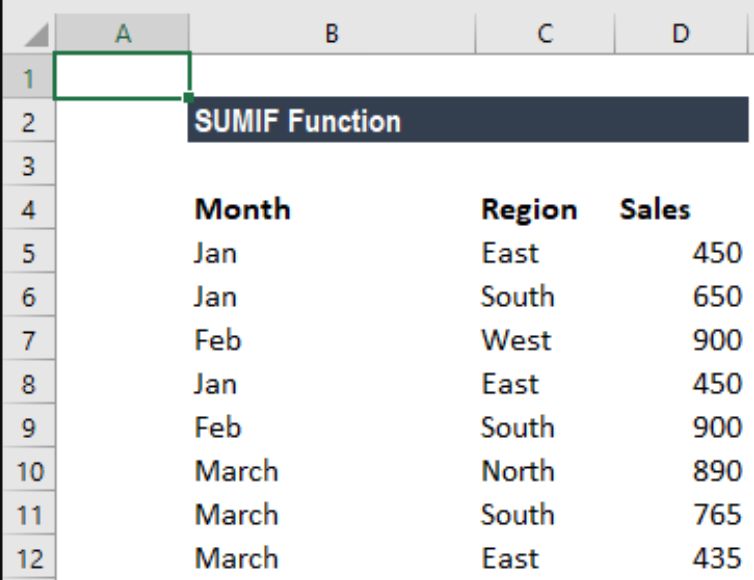
We want to know the overall sales for February as well as the total sales for the East. The following formula may be used to determine East’s total sales:
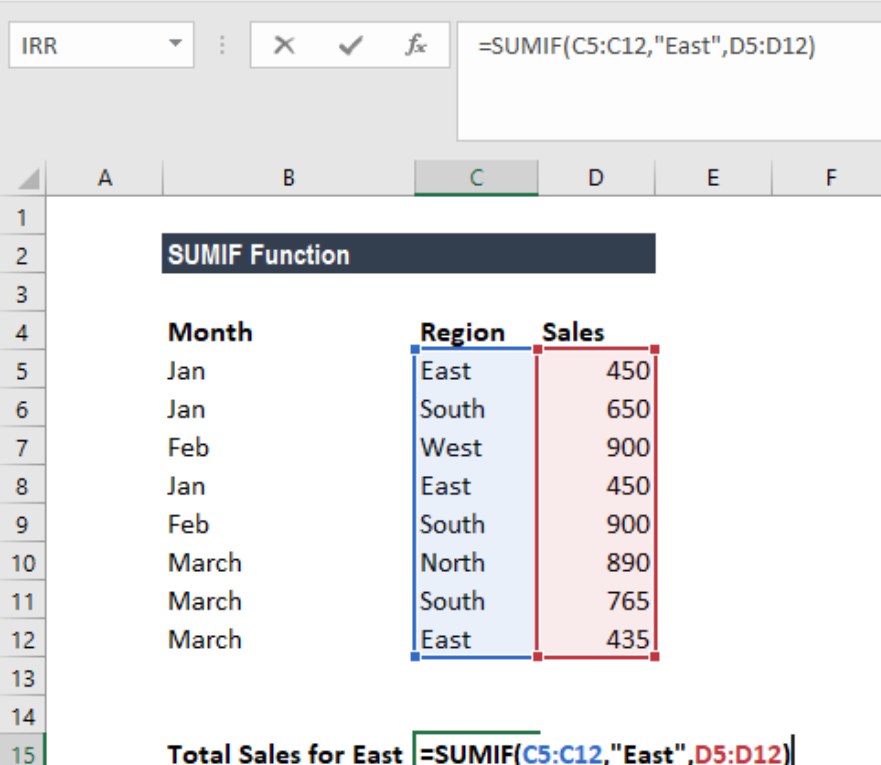
Double quote marks (“”) must be used to surround text criteria or criteria that contain mathematical symbols.
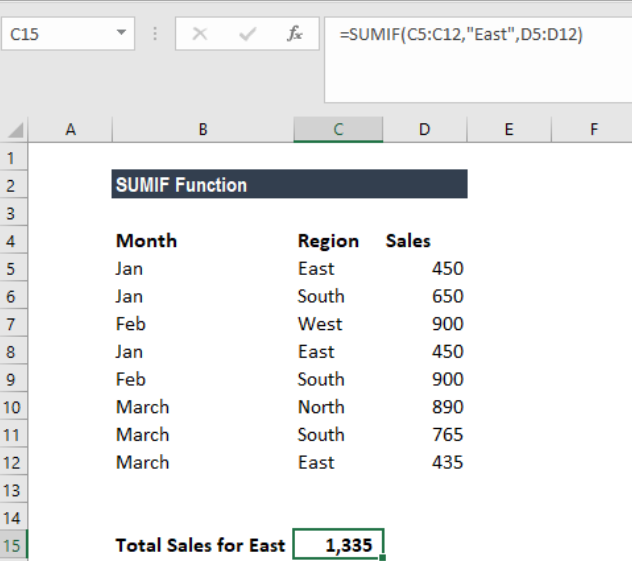
The outcome is as follows:
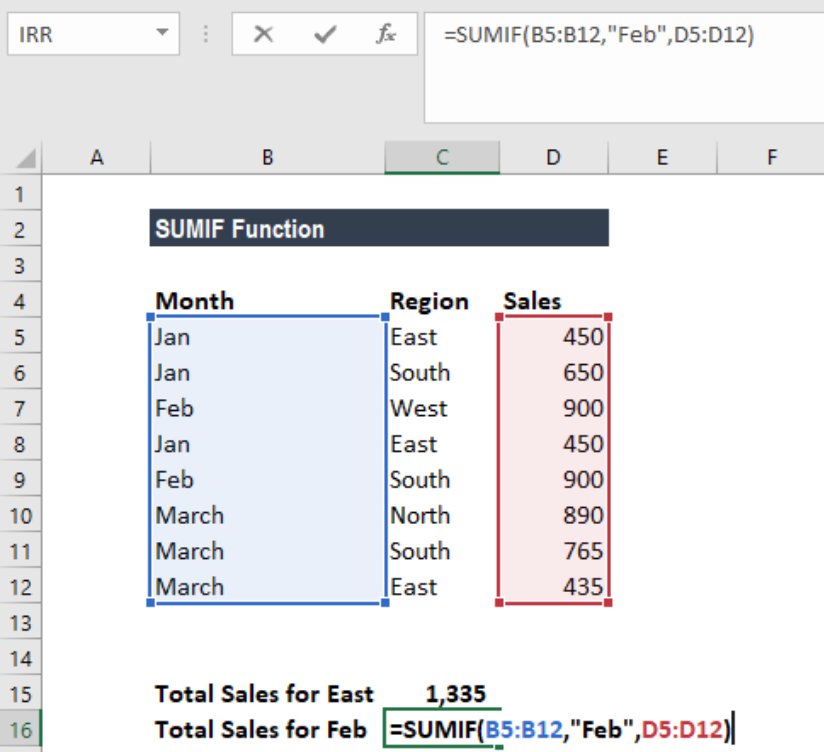
The following formula can be used to calculate February’s total sales:
The result is shown below:

SUMIF vs SUMIFS: What Is the Difference?
The SUMIF function is used when you need to work with one condition, while SUMIFS is useful when you have multiple conditions. With SUMIFS, all the conditions must be met for a row to be included in the total.
SUMIF vs. SUMIFS Comparison:
| Feature | SUMIF | SUMIFS |
|---|---|---|
| Number of conditions | 1 condition | 1 or more conditions (up to 127) |
| Argument order | range, criteria, [sum_range] | sum_range, criteria_range1, criteria1, … |
| Sum range position | Third argument (optional) | First argument (required) |
| Wildcard support | Yes | Yes |
| Date criteria | Yes | Yes |
| OR logic | Not built-in; use helper formulas | Not built-in; you can use SUMPRODUCT |
Key syntax difference: In SUMIF, the sum_range comes last and is optional. In SUMIFS, the sum_range comes first and is required. This small difference can be easy to overlook when switching between the two functions.
Frequently Asked Questions
Is SUMIF case-sensitive?
No, “Fruits,” “fruits,” and “FRUITS” are all treated equally by SUMIF. Use SUMPRODUCT with the EXACT function to get a case-sensitive conditional sum: =SUMPRODUCT((EXACT(B4:B9, “Fruits”))*(C4:C9))
Can SUMIF manage more than one criterion?
No, just one condition is supported by SUMIF. Use SUMIFS for multiple conditions. Add distinct SUMIF formulae for OR logic (such as adding “Fruits” or “Dairy“): =SUMIF(B4:B9, “Fruits,” C4:C9) + SUMIF(B4:B9, “Dairy,” C4:C9)
When there are matches, why does SUMIF return 0?
A mismatch in data types is the most frequent reason. SUMIF will not match if your criterion is a number but the range comprises text-based numbers (or vise versa). Look for apostrophes before digits, leading spaces, and trailing spaces. To normalize the data, use CLEAN and TRIM.
Is SUMIF compatible with dates?
Indeed. To prevent regional format problems, use the DATE function: =SUMIF(B4:B8,“<“&DATE(2024,4,1), C4:C8. All values where the date in column B is prior to April 1, 2024 are added together.
What is SUMIF’s 255-character limit?
When the criterion string exceeds 255 characters, SUMIF produces inaccurate results. This restriction has been observed. Use SUMPRODUCT with an EXACT or FIND formula if you need to match text that is longer than 255 characters.