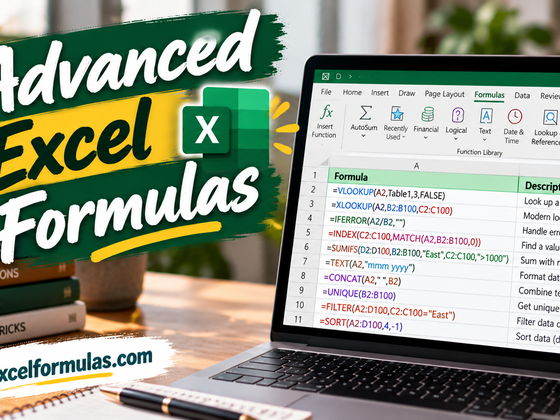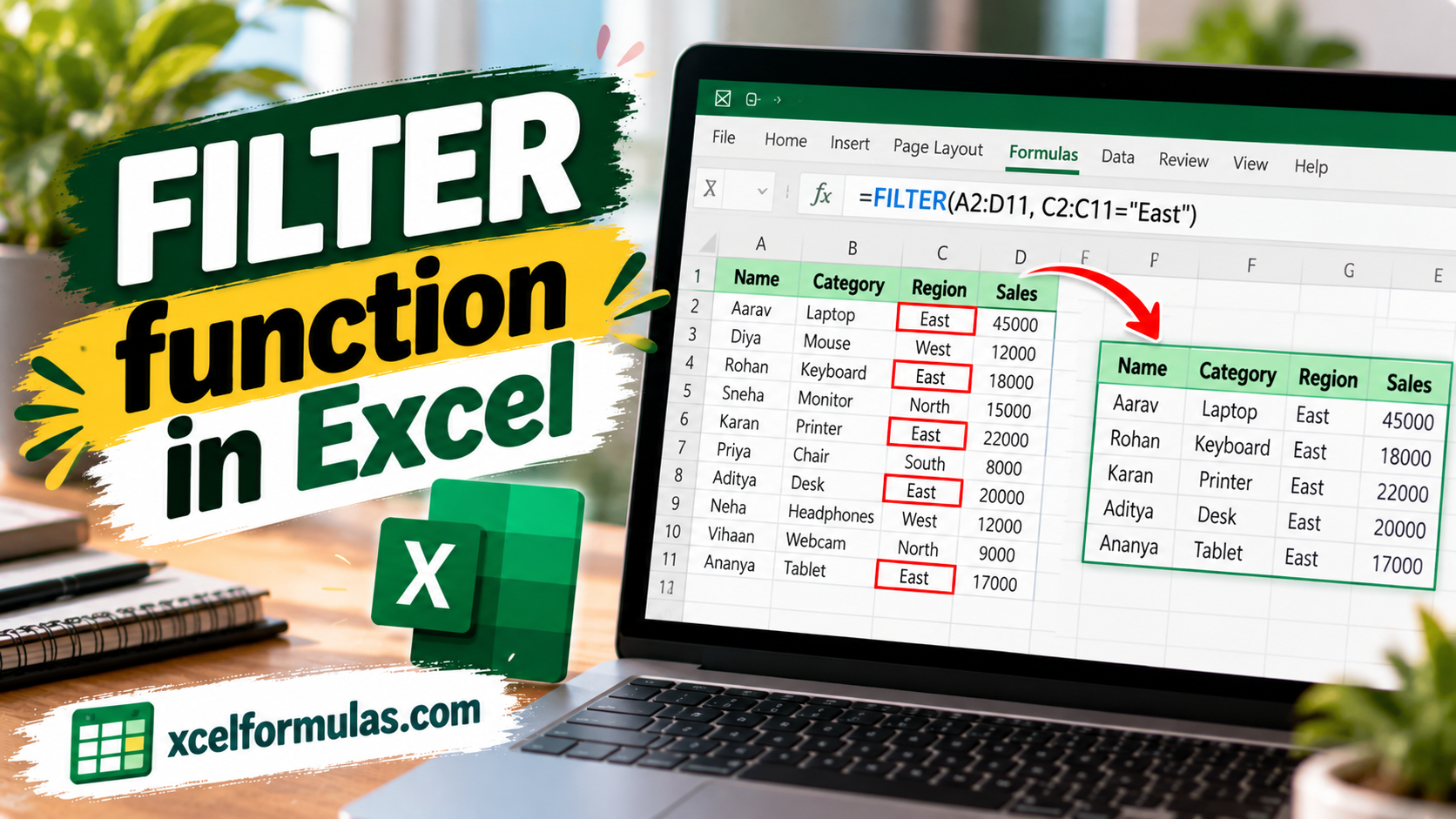
If you are struggling with VLOOKUP or INDEX MATCH because they are either too complicated or fail to display all matching entries at once, the Excel FILTER function offers a simpler solution. It displays every matching entry simultaneously and adapts in real-time so that any changes to your data or criteria automatically refresh the results.
Basic Formula Structure and Custom Error Handling
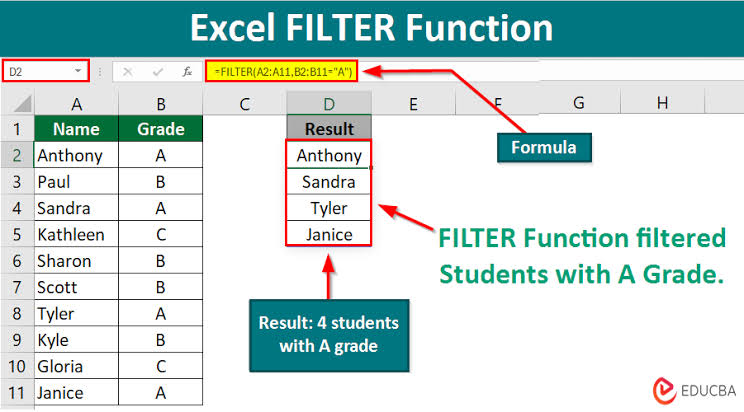
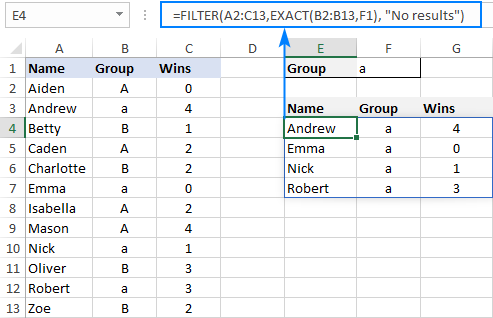
- Basic Syntax: The FILTER function helps you extract rows meeting specific conditions without sorting or manually searching. For example, entering
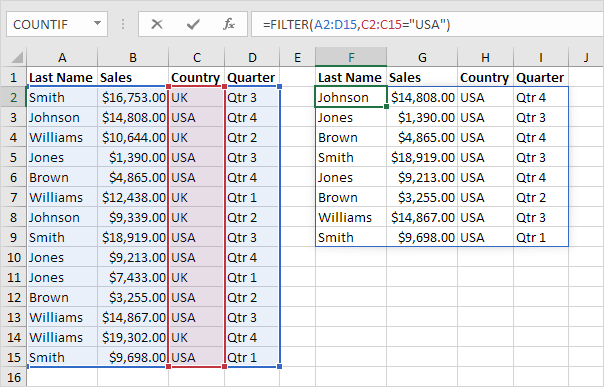
=FILTER(A3:C17, B3:B17=G2)extracts all rows where the “Region” column matches the criteria in cell G2. - Fixing #CALC! Errors: A
#CALC!error occurs when your filter criteria cell is empty or when no data matches your criteria. You can fix this by adding a custom message at the end of the formula, such as=FILTER(A3:C17, B3:B17=G2, "Not Found").
Troubleshooting Spill Ranges and Using Debugging Tools
- Resolving #SPILL! Errors: A
#SPILL!error happens when Excel cannot display all results because the output range (spill range) is blocked by existing data, formatting, or merged cells. To resolve this, identify the highlighted blocked cells, clear any obstructions by pressing Delete, and Excel will automatically display the full results. - Debugging with F9: You can inspect how Excel evaluates conditions by selecting the condition portion within your formula (e.g.,
B3:B17="Asia") and pressing F9 to see a list of TRUE and FALSE values. Be sure to press ESC afterward to avoid turning your formula into hard-coded values.
Combining FILTER with Excel Data Tables
- Excel Data Tables: Converting a plain table into a Data Table (via
Ctrl + T) simplifies formulas by using column names (e.g.,[Region]) instead of confusing cell ranges. - Sweet Spots: You can use table “sweet spots” to select entire tables or columns quickly—such as clicking the top-left diagonal arrow to select the entire table or hovering above a column header to select a single column.
- Dynamic Growth: When you use FILTER with Data Tables (e.g.,
=FILTER(TableDiv2, TableDiv2[Region]=G3, "not found")), the function automatically adjusts to include new records when rows are added, eliminating manual updates.
Mastering the Excel FILTER function transforms how you manage and analyze large datasets. By leveraging dynamic arrays, handling errors smoothly, and integrating structured table references, you can turn hours of manual searching into instant results.