Moving columns in Excel isn’t as simple as it seems. While it may sound easy, Excel doesn’t offer a one-click move column button, which can make the process trickier than expected. Whether you’re setting up a VLOOKUP() or just reorganizing a messy dataset, knowing the right shortcuts is essential.
In this guide, I’ll walk you through various methods for rearranging columns, including drag-and-drop, keyboard shortcuts, the Insert Cut Cells option, and tools like Column Manager. These techniques will help you reorganize your data quickly and avoid common pitfalls when preparing for functions like VLOOKUP().
Moving Columns with Drag and Drop
Drag and drop is the simplest way to move columns in Excel, whether you’re working with a single column or multiple adjacent ones.
Moving a single column
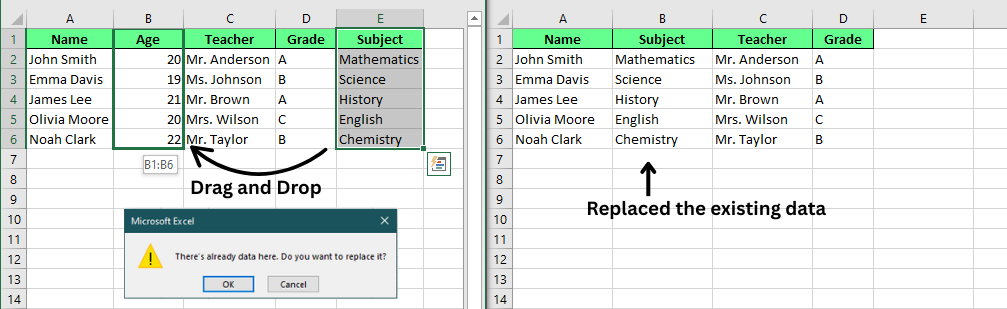
To move a single column, start by clicking the column header (the letter at the top) to select it. Next, hover near the edge of the header until a four-sided arrow appears. Click and hold the mouse button, drag the column to your desired location, and release the mouse button to drop it in place.
If there’s already data in the new location, a pop-up will ask if you want to replace it. Click OK to replace the data, or click Cancel if you don’t want to overwrite anything.
Note: The cursor may appear slightly different on Windows or Mac, but the concept remains the same.
Moving multiple adjacent columns
To move multiple columns that are next to each other, click the header of one column, then hold down the Shift key and click the last column in the group. This will select all the columns in between.
From here, you can move them just like a single column. Hover near the edge until you see the four-sided arrow, click and drag to the new location, and release.
Note: This method only works for adjacent columns. If the columns are not next to each other, you won’t be able to move them together.
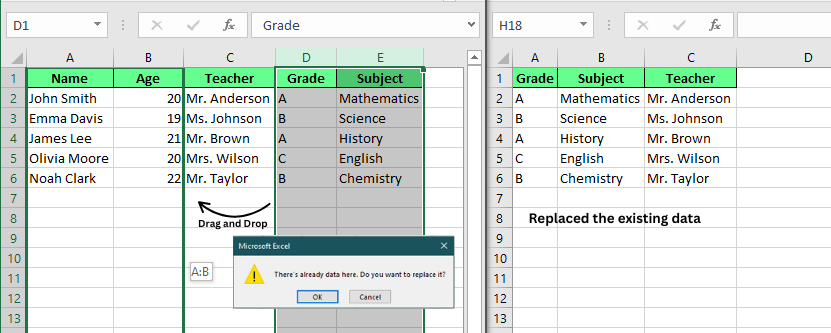
Drag and drop to move multiple columns. Image by Author.
Moving Columns with Keyboard Shortcuts
In addition to drag-and-drop, you can also use keyboard shortcuts and commands to move columns efficiently.
Insert Cut Cells method
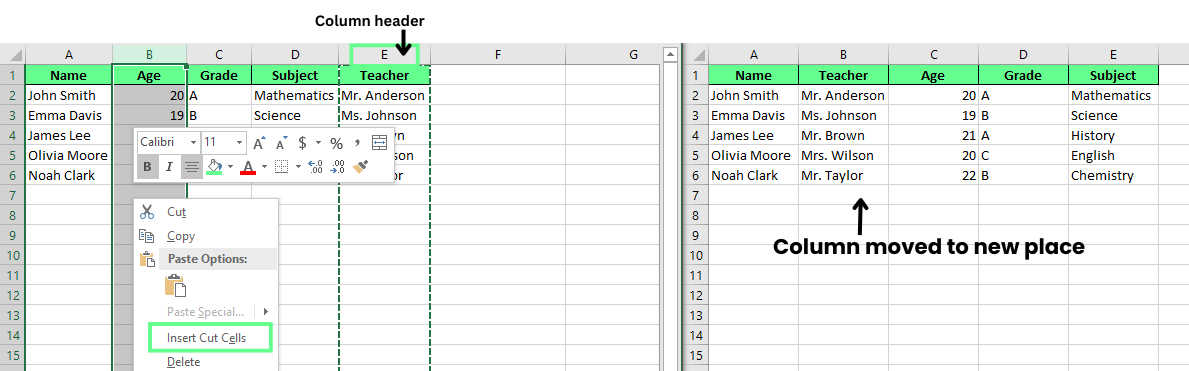
To move a column without overwriting any data, click the column header to select the column you want to move. Press Ctrl + X to cut the column. Next, click on the column’s header where you’d like to place it. Instead of pasting, right-click and select Insert Cut Cells from the context menu, or find this option under the Home tab.
This method inserts your cut column into the new location and shifts the existing columns to the right, avoiding any data overwrite.
Note: This technique is particularly helpful when you want to move a column and maintain the integrity of the data in the destination area.
Cut and paste (without insert)
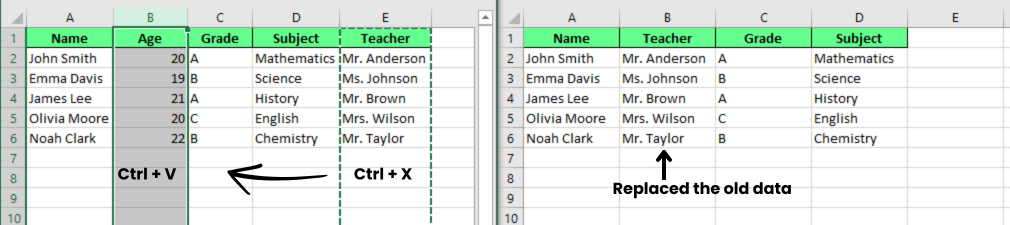
For a simpler approach, you can use Ctrl + X to cut the column and Ctrl + V to paste it into a new location. Remember that this method will replace any data already in the destination column with the new column data. If there’s any existing content in the new location, it will be overwritten.
Copy and paste
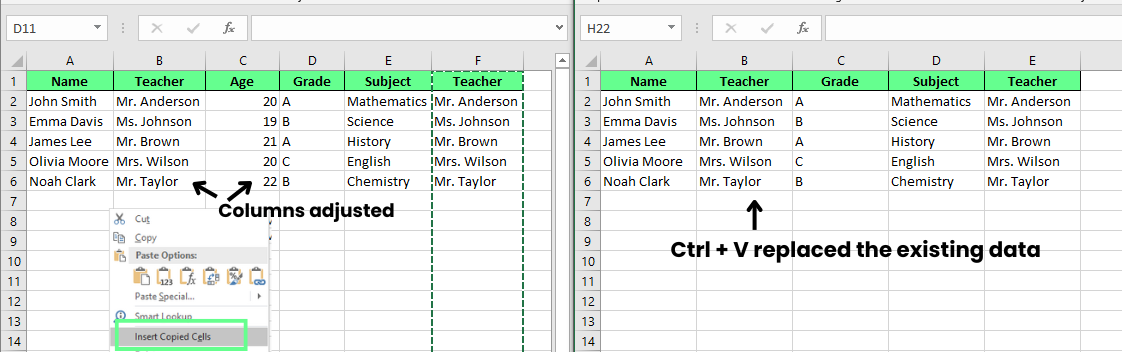
If you want to duplicate a column instead of moving it, use Ctrl + C to copy the column. After selecting the destination column, right-click and choose Insert Copied Cells to insert the copied column into the new location without affecting the original.
Alternatively, you can use Ctrl + V to paste the copied column. However, if you paste it, any existing data in that destination will be replaced. You can delete the original column if you no longer need it.
More Advanced Techniques
Now, let’s look at a few more advanced techniques to move columns in Excel. These methods can help you organize your data more efficiently, especially if you’re dealing with bigger changes.
Shift key drag to insert
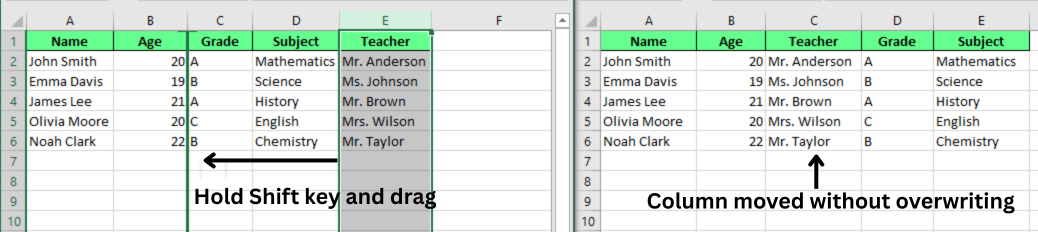
To move a column without replacing any existing data, hold down the Shift key while dragging it. Here’s how:
- Select the column you want to move.
- Hold the Shift key and drag the column to the new spot.
- As you drag, a green line will show where the column will go. When you release it, the column will drop into place, and the others will shift over to make room, so no data will be lost.
This is a simple but effective way to keep everything organized while rearranging your columns.
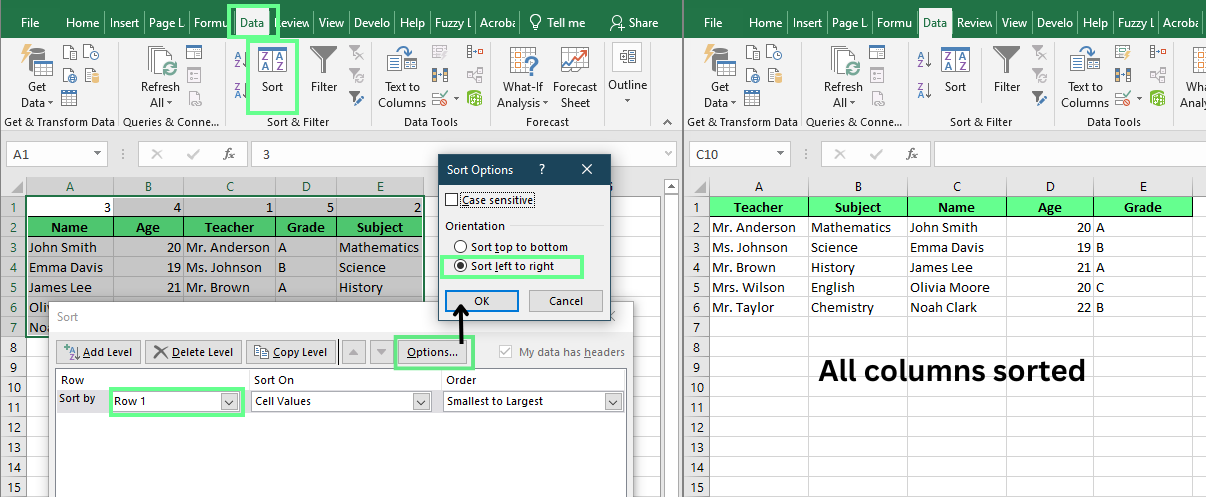
Magic move with Sort by row
If you have a lot of columns to move and want them in a specific order, use a helper row to sort them. Here’s how:
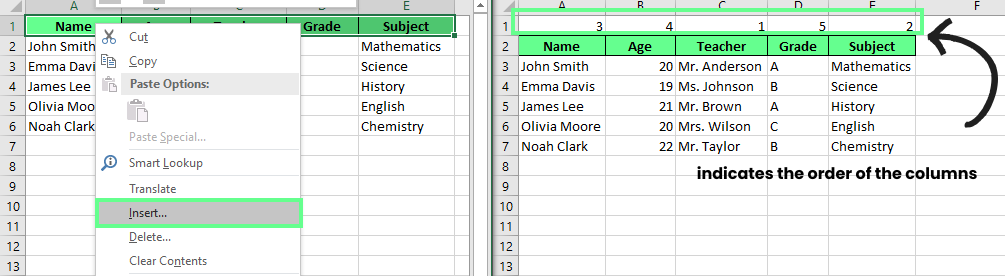
- Insert a new row at the top of your data. Right-click your dataset, select Insert, and choose Shift cells down.
- In the new row, number the columns to show the order you want (for example, Teacher, Subject, Name, Age, Grade).
- Select all your data and go to the Data tab. Click Sort, then click the Options button in the dialog box.
- Choose Sort left to right, then press OK. In the Sort by field, select Row 1 from the drop-down list and hit OK again.
- Delete the helper row when you’re done.
This method is perfect for when you need to quickly reorganize a large set of columns in a specific order.
Column Manager tool (e.g., Ablebits Ultimate Suite)
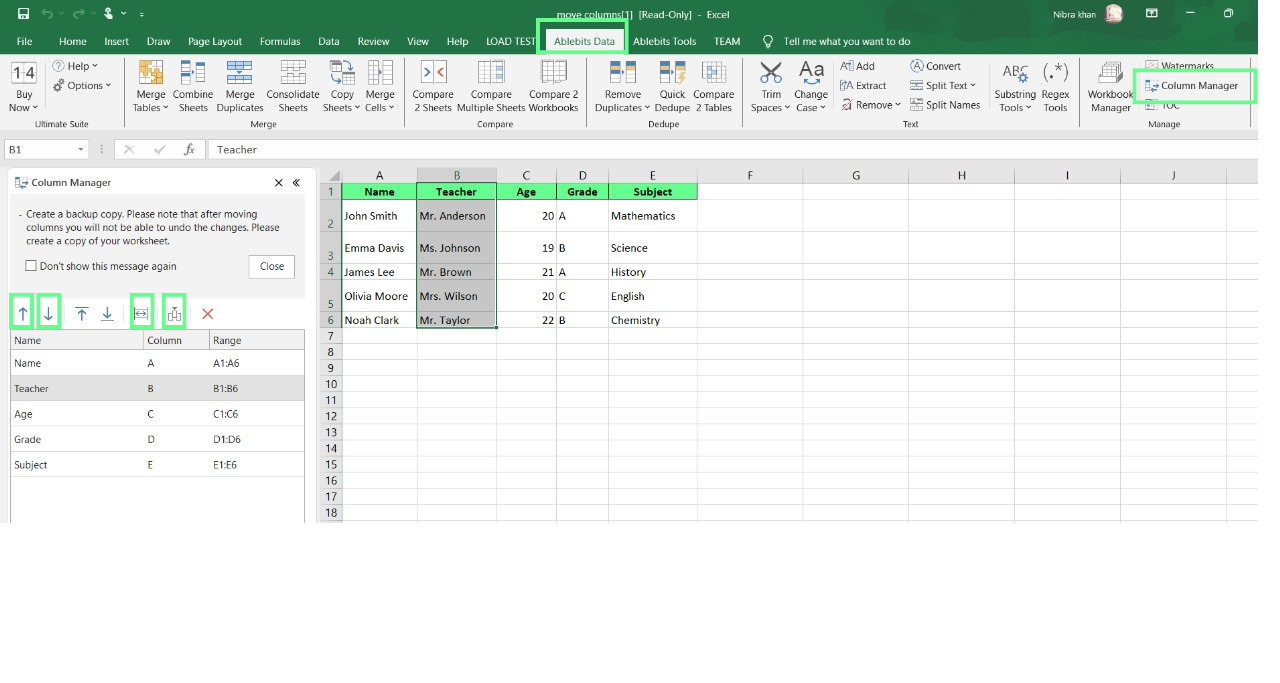
If you’re looking for an even easier way to move columns, try the Column Manager tool from the Ablebits Ultimate Suite. Here’s how you can do it:
- Install the Ultimate Suite. Once installed, open Excel and go to the Ablebits Data tab. Click Column Manager to open the panel.
- In the Column Manager panel, you’ll see a list of your columns.
- To move a column, select it in the panel and use the Up or Down arrows, or drag and drop non-adjacent columns into place.
The changes you make will show up right away in your worksheet. In fact, the tool also includes features like AutoFit to adjust column widths and options to insert new columns.
Disclaimer: The Column Manager tool is a third-party add-in, so you’ll need to install it separately.
Platform Differences
It’s important to remember that the way some features work can differ depending on which OS you’re using.
Excel for Windows
If you’re using Excel on Windows, all the methods we’ve covered, including the drag-and-drop, keyboard shortcuts, and the Insert Cut Cells option, work as expected. It’s all pretty seamless, and everything should run smoothly with no surprises.
Excel for macOS
On macOS, the process is largely the same, but there are a few variations to be aware of. When you drag columns, the cursor appears as a hand instead of the usual four-sided arrow. And instead of Ctrl for shortcuts, you’ll use the Cmd key. These are small differences, but they can change how you interact with Excel.
Limitations and Workarounds
While Excel is quite helpful for rearranging columns, there are a few limitations to consider. But we’ve got workarounds to make things easier.
Non-adjacent column moves
By default, Excel doesn’t allow you to move non-adjacent columns all at once. If you try to select multiple columns that aren’t next to each other, Excel won’t let you move them together. To work around this, you can either move each column individually or use a tool like the Column Manager add-in, which makes it much quicker to move non-adjacent columns.
Dealing with formula errors
When you cut a column used in a formula, you may run into a #REF! error. This happens because the formula loses its reference to the moved column. To avoid this, make it a habit to double-check your formulas before moving columns. Alternatively, you can use absolute references (like $A$1) in your formulas. This way, the formulas will stay intact no matter where you move your columns.
Final Thoughts
Excel may seem a bit limited when it comes to moving columns, but once you know the right techniques, it’s much more flexible than it first appears. From simple methods like drag-and-drop and Shift+Drag to using Insert Cut Cells or advanced tools like Column Manager, there are plenty of options to help you organize your data with ease.
Take some time to try out these different approaches and see which one fits best with your workflow. The more you experiment, the more efficient you’ll become at moving columns in Excel.