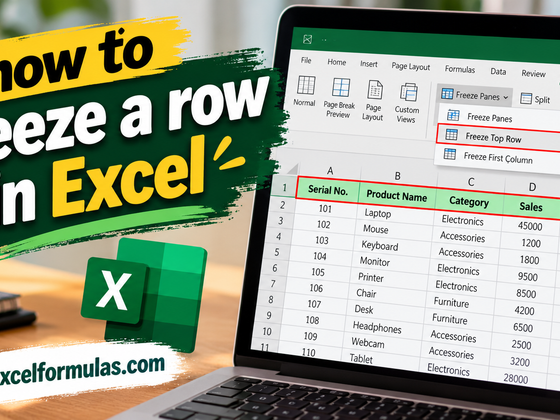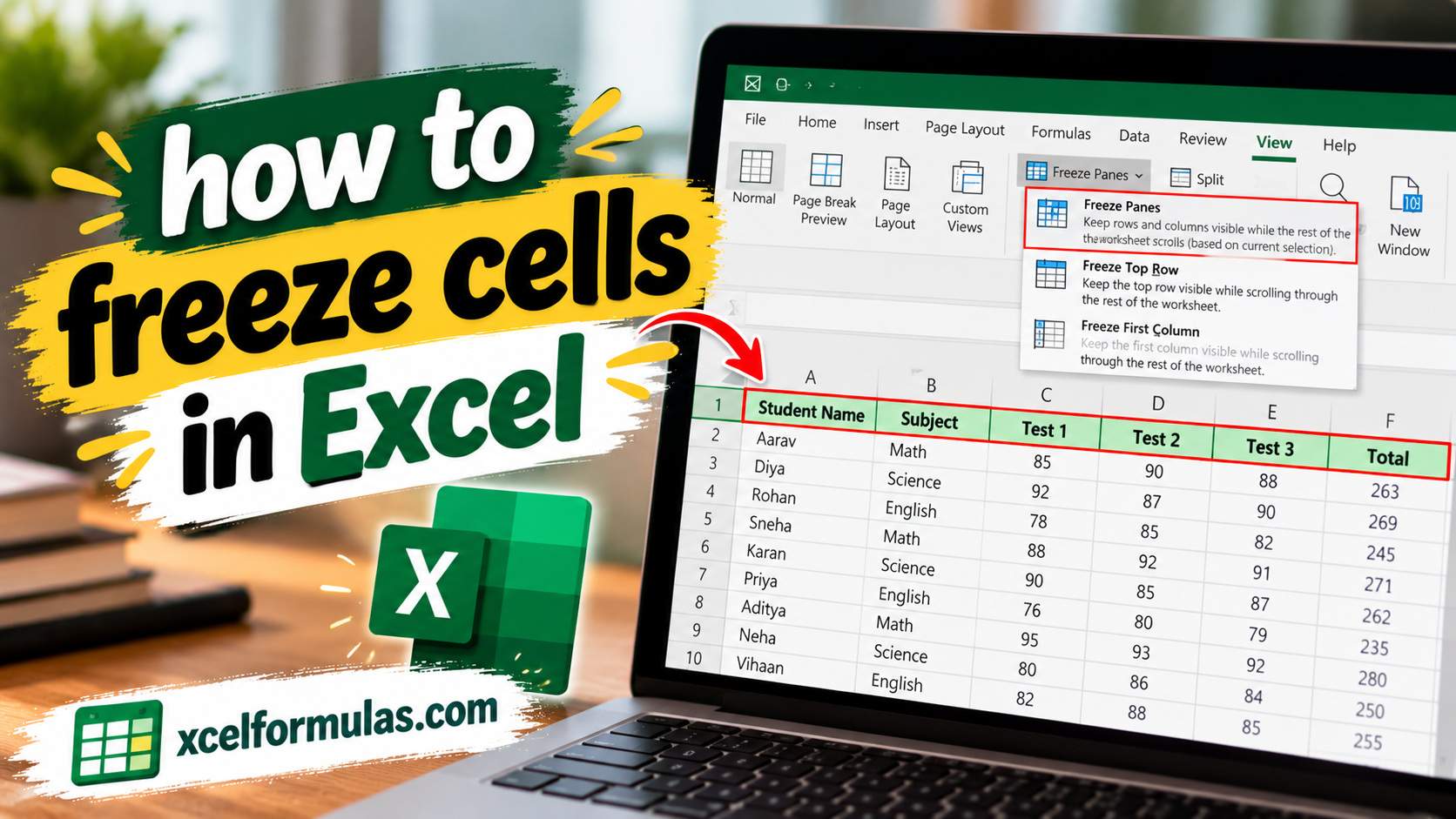
Freeze panes in Excel is a key feature that allows you to keep important rows or columns visible while scrolling through large datasets. It comes in handy when navigating large sheets, making comparisons, or presenting data. Whether you want to freeze the top row, first column, or multiple cells, the process can be accomplished in just a few straightforward steps.
Freezing Rows and Columns Separately
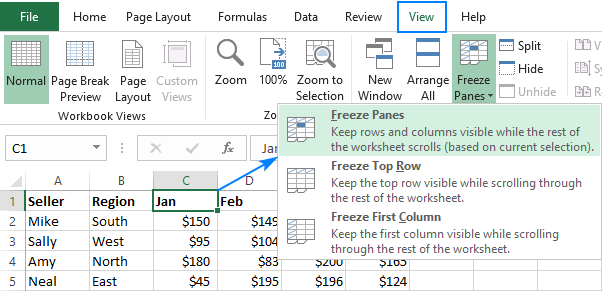
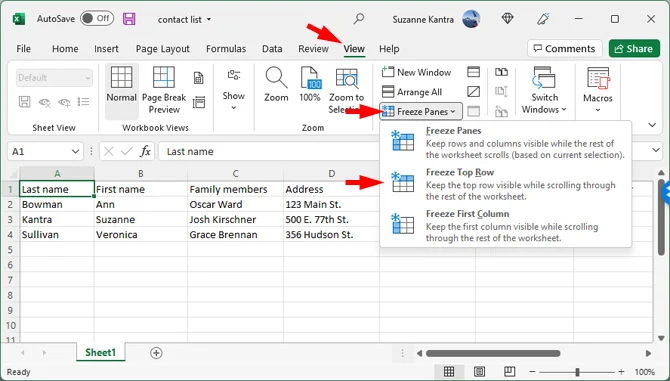
- Freezing the Top Row: Open your Excel worksheet, navigate to the View tab at the top of your document, click on Freeze Panes to open the drop-down menu, and select the Freeze Top Row option. This ensures the header stays visible as you scroll down.
- Freezing Multiple Rows: Select the row just below the rows you want to freeze. Then go to the View tab, select Freeze Panes, and choose Freeze Panes from the drop-down menu.
- Freezing Columns: To freeze the first column, go to the View tab, click Freeze Panes, and select Freeze First Column. To freeze multiple columns, select the column just to the right of the columns you want to freeze, navigate to the View tab, click Freeze Panes, and choose Freeze Panes.
Freezing a Range of Cells and Unfreezing
- Freezing a Range of Cells: To freeze both rows and columns simultaneously, select the cell present immediately below the rows and to the right of the columns you need to freeze. Go to the View tab, click on Freeze Panes, and select Freeze Panes.
- Unfreezing Cells: To unlock previously frozen rows and columns, keep your worksheet open, navigate to the View tab, click on Freeze Panes, and select Unfreeze Panes.
Quick Tips and Advanced View Options
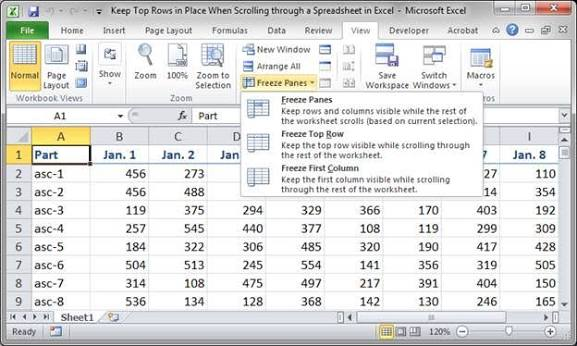
- Quick Access Toolbar Shortcut: You can add Freeze Panes to your Quick Access Toolbar via File > Options > Quick Access Toolbar, choosing All Commands, finding Freeze Panes, and clicking Add. This lets you freeze cells instantly without navigating the ribbon.
- New Window & Arrange All: To compare data across different parts of the same sheet, use the New Window option under the View tab to open another window, then use Arrange All to organize open windows in tiled, horizontal, vertical, or cascade layouts.
- Split Panes vs. Freeze Panes: While freeze panes keep specific rows/columns visible as you scroll, the Split option divides the worksheet into separate sections where you can work independently.
Mastering freeze panes in Excel ensures that large datasets remain manageable and easy to navigate. By utilizing quick access shortcuts and complementary view options, professionals can streamline their daily tasks and boost overall productivity.