When you scroll down a large spreadsheet and your column titles disappear, analyzing data quickly becomes a frustrating guessing game. Fortunately, Microsoft Excel provides a simple and powerful solution: freezing rows and columns to keep headers, IDs, and labels permanently in view while you navigate your dataset.
Freezing Rows and Columns Separately
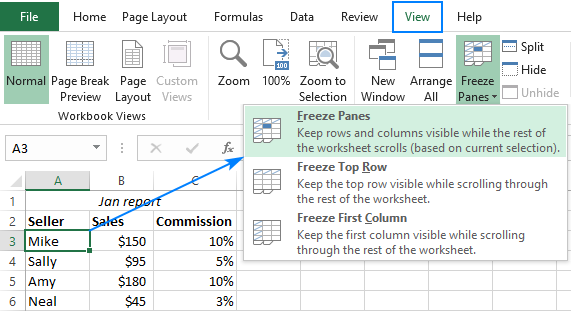
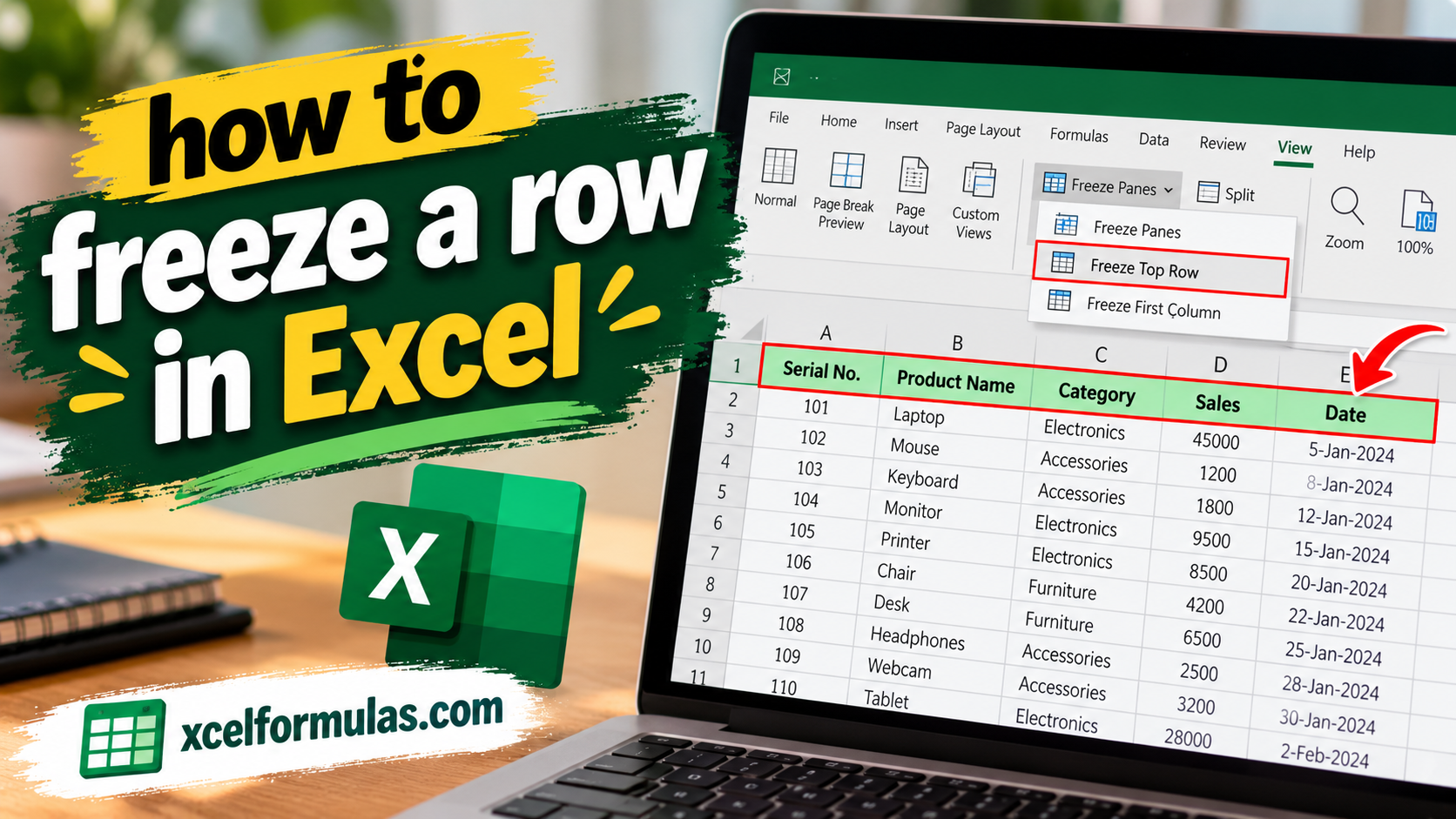
To freeze the top row (Row 1) of your worksheet, simply navigate to the “View” tab, choose “Freeze Panes,” and select “Freeze Top Row.” If you need to freeze multiple rows—such as rows 1 and 2—you must select the row immediately below them (Row 3) before going to “View” > “Freeze Panes” > “Freeze Panes.”
The process is identical for columns. To keep your first column visible, go to “View” > “Freeze Panes” > “Freeze First Column.” If you need to lock multiple columns, select the column immediately to the right of the last column you want to freeze, and select “Freeze Panes” from the drop-down menu.
Freezing Rows and Columns Simultaneously
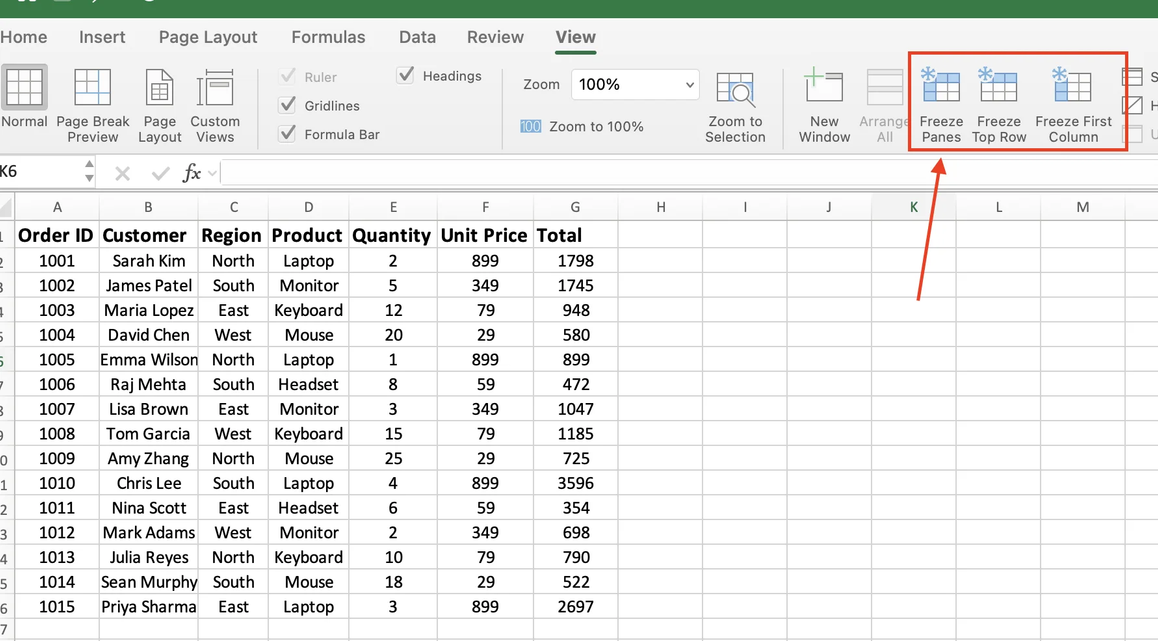
Sometimes you need to keep both horizontal headers and vertical row labels in view as you scroll deep into a massive dataset. To freeze rows and columns at the same time, select the single cell that is immediately below the last row and to the right of the last column you wish to freeze. For example, if you want to freeze rows 1–2 and column A, you would select cell B3.
Once the correct cell is selected, navigate to the “View” tab, click “Freeze Panes,” and choose “Freeze Panes.” As you scroll down or across your worksheet, your designated headers and labels will remain locked in place. To return your spreadsheet to its original layout, simply head back to the “View” tab and select “Unfreeze Panes.”
Keyboard Shortcuts and Efficiency Tips
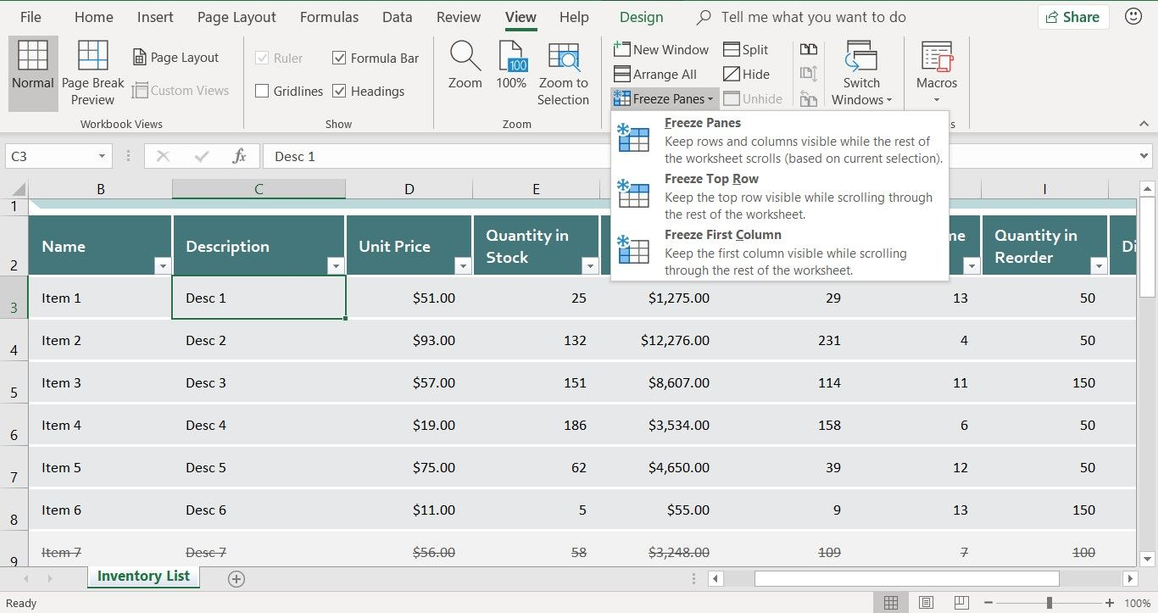
Excel is all about efficiency, and learning shortcuts can save you significant time when managing large datasets. While Excel does not feature a single-button toggle for freezing panes, you can press Alt + W, F sequentially to open the Freeze Panes menu instantly without manually clicking through the ribbon.
For even faster access, you can customize your Quick Access Toolbar by selecting “More Commands,” changing the dropdown to “All Commands,” finding “Freeze Panes,” and adding it to your permanent toolbar. Additionally, remember that standard Excel files (.xlsx) cannot store macros or customized views, so always save your macro-enabled workbooks as .xlsm files to protect your progress.
Mastering the Freeze Panes feature is one of the foundational skills every Excel user needs to stay organized when handling large datasets. Whether you are locking a single header row or managing a complex multi-column report, keeping your key information visible dramatically improves both efficiency and presentation.