These two functions make it easy to stack datasets vertically or horizontally without breaking a sweat. In this post, we’ll explore both functions using a few simple examples from our workbook, and show you how to use them to streamline your data prep.
Understanding the VSTACK Function
Syntax:
VSTACK(array1, [array2], …)array1,array2, … – Ranges or arrays you want to stack on top of each other
Exercise 1: Combining Quarterly Exports with VSTACK
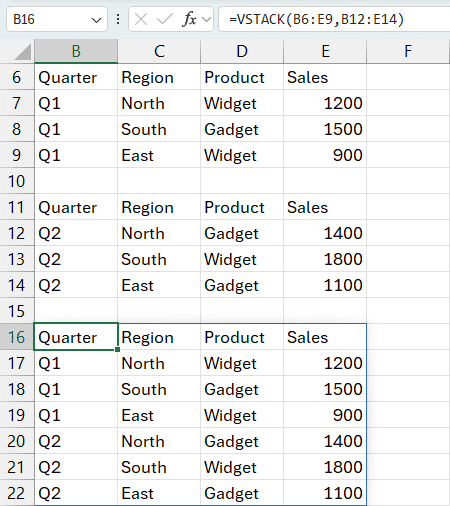
In the Exercise 1 worksheet, imagine we receive Q1 and Q2 sales data from different sources. These could be on different sheets or files, but for simplicity, they’re side by side.
We want to combine them into one list. Here’s how to do it:
Formula in cell E6:
=VSTACK(B6:E9, B12:E14)This stacks:
- Q1 data (which includes column headers)
- Q2 data (without column headers, since they’re already in Q1)
And the result is a vertically combined list that’s ready for analysis:
Understanding the HSTACK Function
Syntax:
HSTACK(array1, [array2], …)array1,array2, … – Ranges or arrays you want to place side-by-side
Exercise 2: Combining Regional Sales Horizontally with HSTACK
Sometimes, you don’t want to append rows—you want to compare data side-by-side.
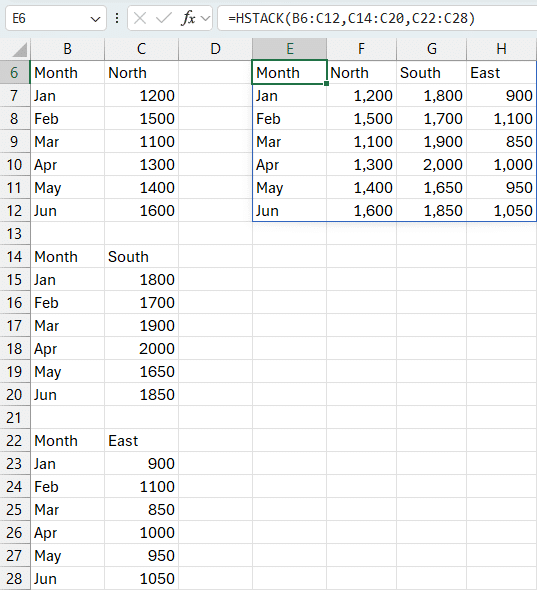
In the Exercise 2 worksheet, we have monthly sales data for three regions: North, South, and East. Each region has its own column of sales figures.
To place all this together in a single table:
Formula in cell B6:
=HSTACK(A6:A10, B6:B10, C6:C10)Here’s what we’re doing:
A6:A10→ Month namesB6:B10→ North region salesC6:C10→ South region sales
You’ll get a clean table with months and all three regional sales figures lined up horizontally:
Adding a Total Row
Want a total for each region? Just use Alt + = on the cells below to insert the SUM function automatically.
Manually Typing Arrays with VSTACK
Sometimes you don’t have column headers in your data—or maybe you want to add your own custom headers manually. No problem. VSTACK can handle that too.
Let’s check out Exercise 3.
Example: Adding Manual Headers with VSTACK
In this exercise, we want to add column headers above our data using manually typed text.
Formula in cell E6:
=VSTACK({"Month","Amount"}, B6:C9)Results:
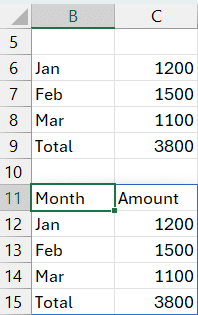
Here’s what’s happening:
{"Month","Amount"}is a manually typed array with two text valuesB6:C9contains the actual data- VSTACK puts the custom headers on top of the data
This trick is great when you’re building custom summaries or dashboards where headers aren’t present in the source data—or when you want to override them.
The VSTACK and HSTACK functions open up a new world of flexibility in Excel. Whether you’re combining exports, comparing regions, or building dashboards, these functions help you organize your data without manual work.
We can now cleanly and dynamically stack datasets vertically or horizontally—and even build custom arrays with headers on the fly.