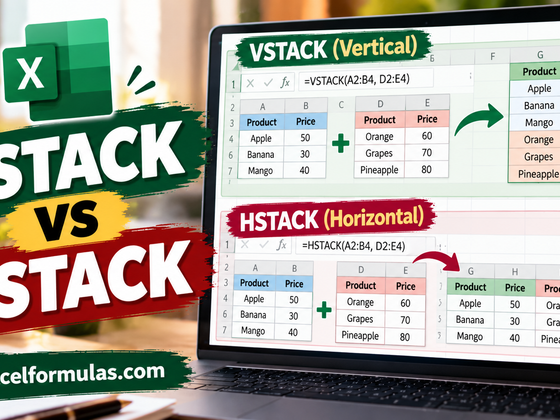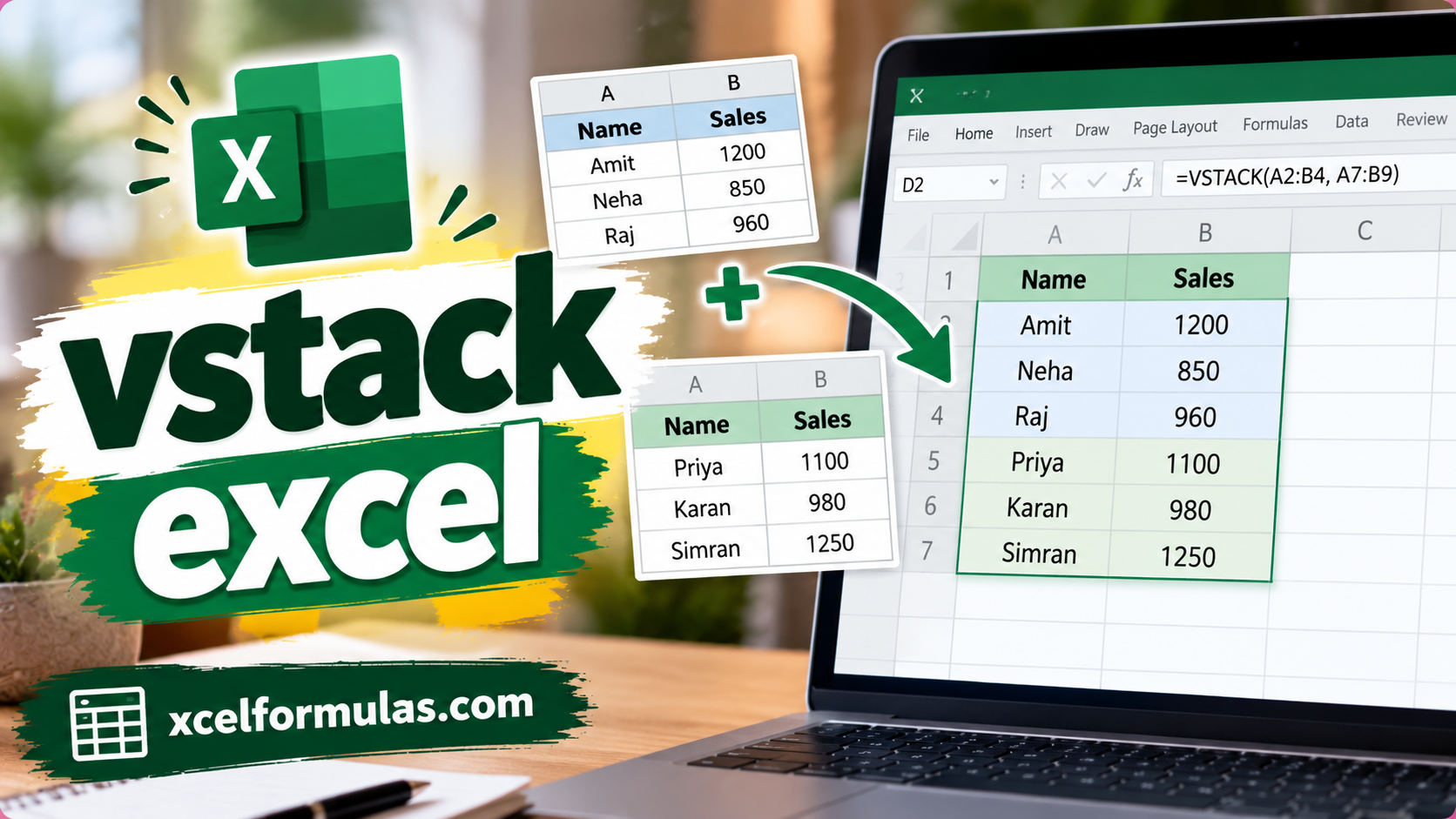
The Excel VSTACK function combines arrays vertically into a single array. Each subsequent array is appended to the bottom of the previous array. Use VSTACK to combine lists, tables, and data from multiple sheets, then sort, filter, or summarize the result.
=VSTACK(array1, [array2], ...)Using the VSTACK function
The VSTACK function combines arrays vertically into a single array. Each array is appended to the bottom of the previous one, and the result spills onto the worksheet. VSTACK works with ranges, Excel Tables, and arrays created by other formulas, and the result updates when the source data changes. Use VSTACK to combine ranges vertically and HSTACK to combine ranges horizontally.
VSTACK is often an early step in a larger formula that needs to combine data before performing other operations. Once the data in separate ranges, tables, or sheets is combined into one array, you can sort, filter, count, or summarize it as if it were a single range. Most of the examples below follow this pattern.
VSTACK stacks its arguments in the order given. The formulas below stack two and three ranges:
=VSTACK(range1,range2) // stack two ranges
=VSTACK(range1,range2,range3) // stack three ranges
VSTACK also accepts array constants and single values, so it can add a header row to a range, or build a list from scratch:
=VSTACK({"Name","Score"},range) // add a header row
=VSTACK("Red","Blue","Green") // returns {"Red";"Blue";"Green"}
A 3D reference stacks the same range from several sheets, and other functions can work with the result directly:
=VSTACK(Sheet1:Sheet3!A1:C10) // same range on three sheets
=SORT(VSTACK(range1,range2)) // sort the combined data
In the worksheet shown above, VSTACK combines two Excel Tables, Table1 and Table2. The formula in J5 is =VSTACK(Table1,Table2), and the 9 rows of data spill into J5:L13. Because Excel Tables expand automatically, a new row in either table appears in the result.
Combine two lists
The simplest use of VSTACK is to combine two lists into one. In the worksheet below, the formula in F5 is:
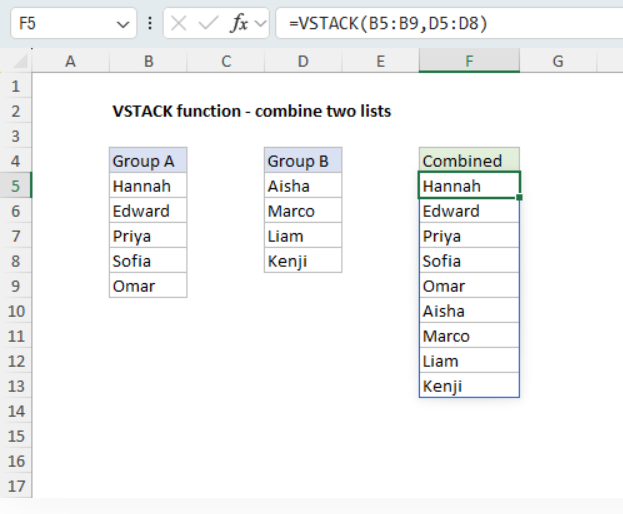
=VSTACK(B5:B9,D5:D8)

VSTACK appends the four names in D5:D8 below the five names in B5:B9, and the nine names spill into F5:F13. The result follows the order of the arguments, so =VSTACK(D5:D8,B5:B9) would put Group B first. The ranges don't need to be the same size or next to each other.
Add headers when combining tables
When you combine Excel Tables, VSTACK returns only the data, because a table reference like East doesn’t include the header row. To add headers, include them as the first array. In the worksheet below, the table on the left is named East, the table on the right is named West, and the formula in H4 is:
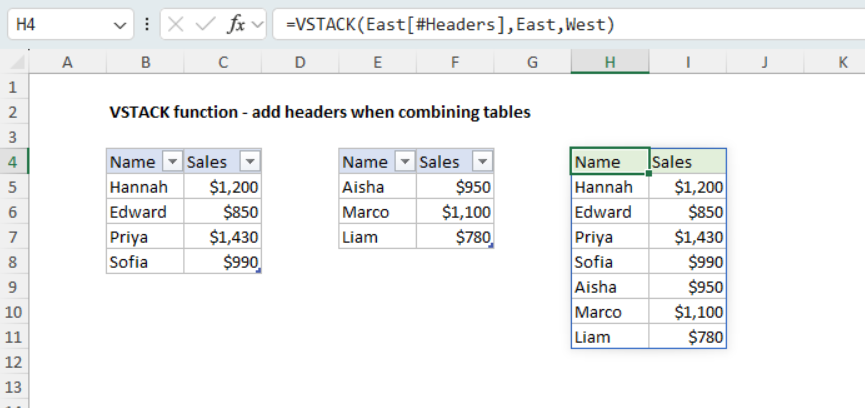
=VSTACK(East[#Headers],East,West)East[#Headers] is a structured reference to the header row of the East table, so it becomes the first row of the result. The rows from East and West follow, and the result spills into H4:I11. A shorter option is East[#All], which refers to the headers and the data together:
=VSTACK(East[#All],West)For data that isn’t in a table, supply the headers as an array constant: =VSTACK({"Name","Sales"},B5:C8,E5:F7).
Ranges with different column counts
VSTACK returns as many columns as the widest range. When a range has fewer columns, VSTACK pads it with #N/A errors. You can see this behavior in the worksheet below, where the first range has two columns and the second range has one. The formula in G5 is:
=VSTACK(B5:C8,E5:E7)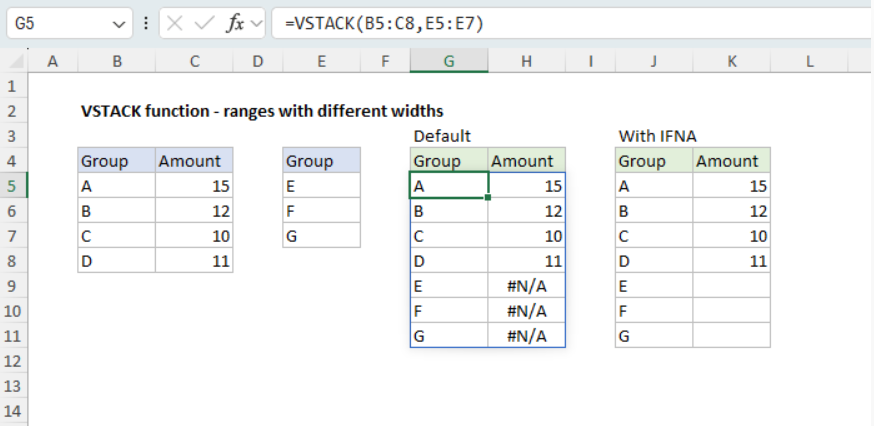
Groups E, F, and G come from a one-column range, so their Amount cells show #N/A. To replace the errors with empty cells, wrap VSTACK in the IFNA function, as in J5:
=IFNA(VSTACK(B5:C8,E5:E7),"")IFNA replaces each #N/A with an empty string (“”), which displays as an empty cell. The IFERROR function also works, but it traps every error, so there is a risk it will hide real errors in the source data. Another option is to pad the narrow range yourself with the EXPAND function:
=VSTACK(B5:C8,EXPAND(E5:E7,,2,""))EXPAND widens E5:E7 to two columns and fills the new column with empty strings, so only that range is padded.
Combine ranges that grow
To pick up new data automatically, you might want to give VSTACK ranges that extend past the data. The problem is that empty cells will come through as zeros. In the worksheet below, the formula in F5 is:
=VSTACK(B5:B100,D5:D100)The five names in Group A are followed by 91 zeros from the empty cells in B10:B100, and the names in Group B don’t appear until row 101. A good fix is to use a trim reference. The formula in H5 is:
=VSTACK(B5:.B100,D5:.D100)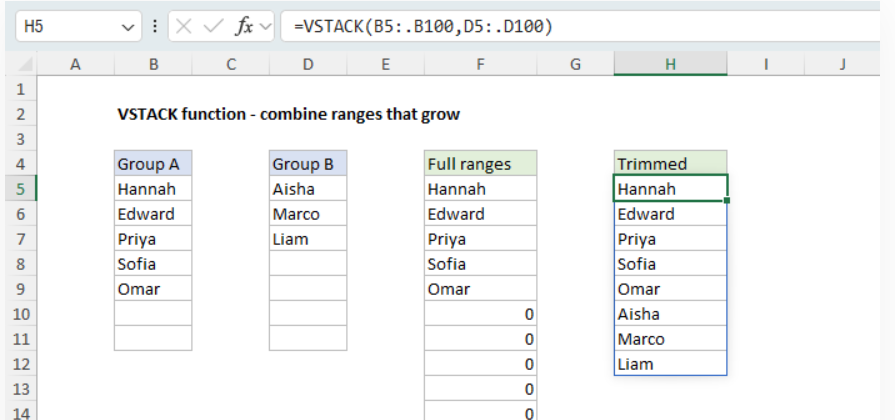
The dot after the colon tells Excel to trim empty rows from the end of each range, so B5:.B100 becomes B5:B9, and D5:.D100 becomes D5:D7. The result contains just the eight names, and a name added below either list appears in the result. The TRIMRANGE function does the same thing:
=VSTACK(TRIMRANGE(B5:B100),TRIMRANGE(D5:D100))Trim references and TRIMRANGE are available in Excel 365 only. In other versions, convert each range to an Excel Table, which expands to fit new data, as in the worksheet at the top of this page.
Note that a trim reference only trims the end of a range, so a blank cell inside a list still comes through as a zero. To display those cells as blanks, test for empty values with the IF function like this:
=LET(data,VSTACK(B5:.B100,D5:.D100),IF(data="","",data))Inside the array, the empty cells are still empty, so data="" returns TRUE for them, and IF replaces them with empty strings. Numbers, including real zeros, stay numbers.
Combine data from multiple sheets
To combine data in the same location on adjacent worksheets, you can give VSTACK a 3D reference. In this workbook, the sheets Jan, Feb, and Mar each list orders in the range B5:D16, with empty rows to spare. The formula in B5 on the summary sheet is:
=LET(data,VSTACK(Jan:Mar!B5:D16),FILTER(data,CHOOSECOLS(data,1)<>""))
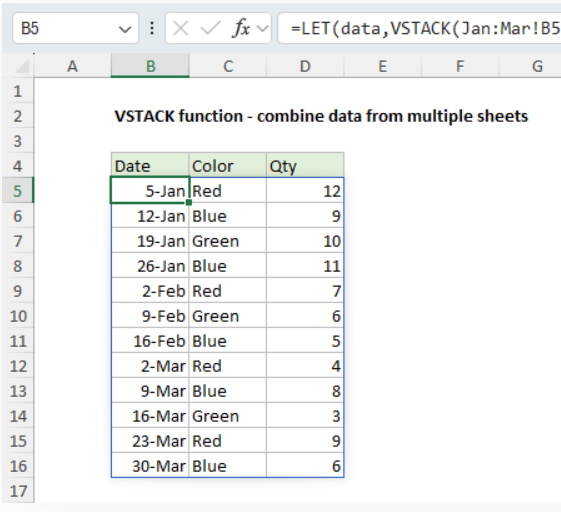
The 3D reference Jan:Mar!B5:D16 refers to B5:D16 on Jan, Mar, and every sheet between them, and VSTACK stacks the three ranges in tab order. Because each range includes empty rows, empty cells will appear in the stacked data as zeros. The LET function names the stacked data data, and the FILTER function keeps only the rows where the first column (the date) isn’t empty. We use the CHOOSECOLS function to test only the first column, which gives FILTER one TRUE or FALSE value per row. The result is 12 orders from three sheets.
Trim references would be a simpler approach, but they don’t work with 3D references. Excel won’t accept a formula like =VSTACK(Jan:Mar!B5:.D100), and TRIMRANGE returns #VALUE! for a 3D reference. However, with just a few sheets, you can refer to each range separately and trim each one:
=VSTACK(Jan!B5:.D100,Feb!B5:.D100,Mar!B5:.D100)
Another good option is to use Excel Tables to hold the data on each sheet, because tables resize automatically to fit the data and don’t typically contain empty rows. For a step-by-step explanation, see Combine data in multiple worksheets.
Unique values from multiple ranges
Because VSTACK combines several ranges into one array, it can feed functions that accept only one array. In the worksheet below, the goal is to list every name that appears in the three lists, once each, in alphabetical order. The formula in H5 is:
=SORT(UNIQUE(VSTACK(B5:B9,D5:D10,F5:F11)))
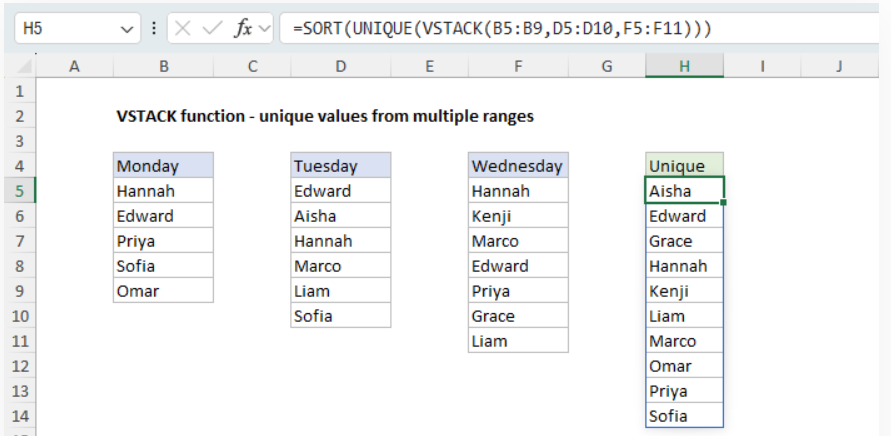
Working from the inside out, VSTACK combines the three lists into one array of 18 names. The UNIQUE function removes the duplicates, and the SORT function sorts the 10 names that remain.
If the ranges include empty cells, VSTACK turns them into zeros, and UNIQUE returns a 0 in the list; use trim references, as explained in Combine ranges that grow, to avoid this. For more details, see Unique values from multiple ranges.
Filter combined data
To filter data that lives in more than one range, combine the ranges first, then filter the result. In the worksheet below, the orders for April and May are in two Excel Tables named April and May, and the goal is to list the red orders from both months. The formula in J5 is:
=LET(data,VSTACK(April,May),FILTER(data,CHOOSECOLS(data,2)="Red"))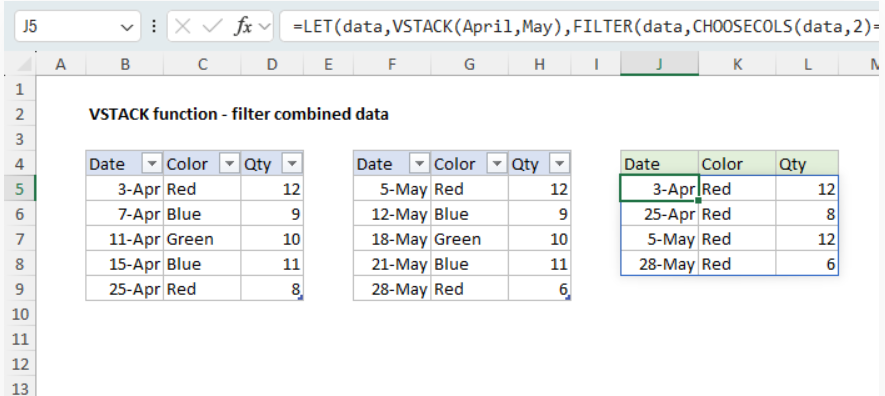
VSTACK combines the two tables into one array, which LET names data. To test the colors, FILTER needs the second column of data, so we use CHOOSECOLS to get and test column 2 of the combined array. Comparing that column to “Red” creates an array of TRUE and FALSE values, and FILTER returns the four rows where the value is TRUE. To make the filter dynamic, replace “Red” with a cell reference.
Count and sum across ranges
To count or sum values across several ranges, you might try COUNTIF or SUMIFS with VSTACK. However, this won’t work because COUNTIF and SUMIFS require a range for their range arguments, and VSTACK returns an array. All RACON functions share this limitation. Instead, combine the data with VSTACK and summarize it with a function that accepts arrays. In the worksheet below, the formula in H5 sums the quantities for each color in two tables, North and South:
=LET(data,VSTACK(North,South),GROUPBY(CHOOSECOLS(data,1),CHOOSECOLS(data,2),SUM))
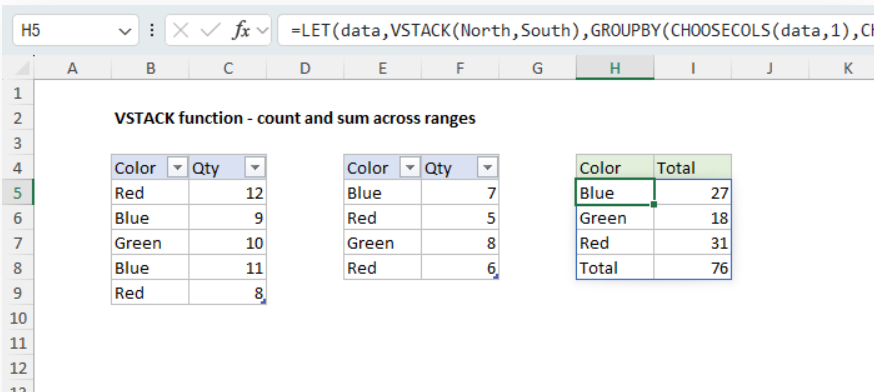
VSTACK combines the tables into data. CHOOSECOLS supplies the colors (column 1) as row_fields and the quantities (column 2) as values, and the GROUPBY function returns a total for each color, plus a grand total. GROUPBY is available in Excel 365 only. To get a single total, use SUM with Boolean logic:
=LET(data,VSTACK(North,South),SUM((CHOOSECOLS(data,1)="Red")*CHOOSECOLS(data,2)))
The comparison returns TRUE for each red row, and multiplying by the quantities converts TRUE and FALSE to 1 and 0, so SUM adds only the red quantities, for a total of 31. To count instead of sum, drop the multiplication: SUM(--(CHOOSECOLS(data,1)="Red")). For more details, see Sum if with multiple ranges and COUNTIF with non-contiguous range.
Add headers and a total row
VSTACK is also a good way to assemble a report from separate pieces. In the worksheet below, the goal is to list the red orders in a table named Orders, with headers on top and a total at the bottom. The formula in F4 looks like this:
=LET(
  data,FILTER(Orders,Orders[Color]="Red"),
  total,HSTACK("Total","",SUM(CHOOSECOLS(data,3))),
  VSTACK(Orders[#Headers],data,total)
)
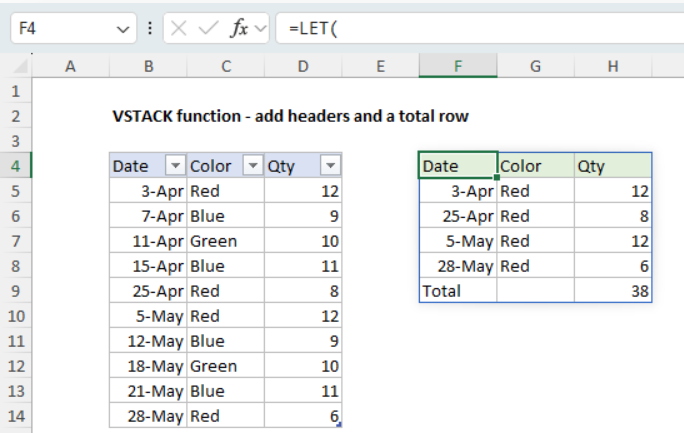
FILTER returns the red orders, which LET names data. Next, the HSTACK function builds the total row from three values: the label “Total”, an empty string for the Color column, and the sum of the Qty column. Finally, VSTACK stacks the headers, the data, and the total row, and the result spills into F4:H9. The empty string is required: HSTACK("Total",,SUM(...)), with an empty argument, returns an error. If no orders match, FILTER returns #CALC!, and so does the whole formula, because VSTACK returns an error when one of its arguments is an error.
Many formulas on this site use the same idea to put headers on a summary built from separate columns, for example VSTACK({"Year","Total"},HSTACK(years,sums)) in Sum by year. See also Sum by week and Minimum value if.
Drop shift a list down one row
When working with thresholds, like upper and lower limits, a common requirement is to “drop shift” a list down one row, so that each value lines up with the value before it. VSTACK and the DROP function do this together. In the worksheet below, column C holds the upper limit of each tax bracket, and the goal is to calculate the lower limit, which is the upper limit of the bracket above. The formula in E5 is:
=DROP(VSTACK(0,C5:C11),-1)
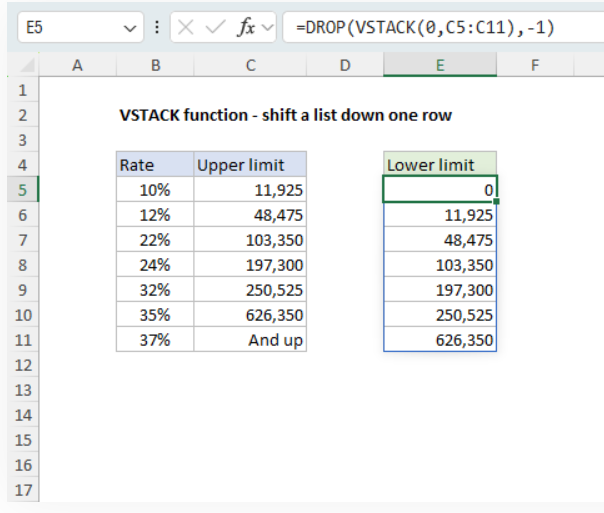
VSTACK puts a zero on top of the upper limits, which creates an array with one extra value:
=DROP({0;11925;48475;103350;197300;250525;626350;"And up"},-1)
DROP with -1 removes the last value, “And up”, so the result has 7 values, one for each bracket, and each value comes from the row above. To shift a list up instead, drop the first value and add a value at the end: VSTACK(DROP(range,1),0). This shift is a key step in Income tax bracket calculation, and it also appears in Mortgage payment schedule and Longest winning streak.
Stack results in a loop with REDUCE
The TEXTSPLIT function splits one text string into separate values, but it can’t split a column of text into rows and columns in one step. TEXTSPLIT(B5:B9,",") returns only the first item from each cell, because Excel won’t return an array of arrays, and the BYROW function returns #CALC! for the same reason. One workaround is to build the result one row at a time with the REDUCE function and VSTACK. In the worksheet below, the formula in D5 is:
=IFNA(DROP(REDUCE("",B5:B9,LAMBDA(a,v,VSTACK(a,TEXTSPLIT(v,",")))),1),"")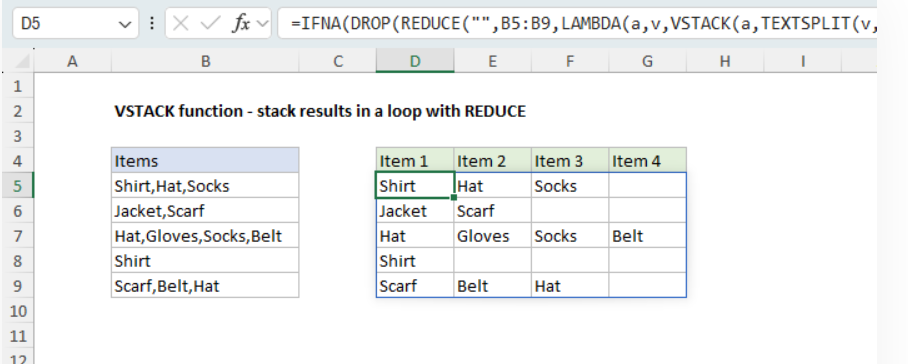
REDUCE visits each cell in B5:B9. For each cell, TEXTSPLIT splits the items into a horizontal array, and VSTACK appends that array to the accumulator a, which REDUCE carries to the next cell. When REDUCE finishes, a holds one row for each cell. The accumulator starts as an empty string, which becomes an empty first row, so DROP removes it. Rows with fewer items are padded with #N/A, as explained in Ranges with different column counts, and IFNA replaces the errors with empty strings.
The same pattern works for any calculation that returns an array for each value: put the calculation inside VSTACK. For more details, see Split comma-separated values to multiple columns, which also covers a simpler TEXTSPLIT and TEXTJOIN formula for smaller data sets.
Notes
- If the cells where the result should spill aren’t empty, VSTACK returns #SPILL!. VSTACK also returns #SPILL! inside an Excel Table, because tables don’t support spilling formulas.
- When arrays have different numbers of columns, VSTACK pads the narrower arrays with #N/A. See Ranges with different column counts.
- Empty cells come through as zeros, but they still count as empty inside the array:
=""and ISBLANK both return TRUE for them. So FILTER with<>""removes them, and so doesTOCOL(VSTACK(range1,range2),1)for single-column ranges. - An error in a source cell appears in its own cell in the result. But when an argument is an error, such as FILTER returning #CALC! when nothing matches, VSTACK returns that error instead of a stacked result.
- Full-column references like
VSTACK(A:A,B:B)return #NUM!, because the result would have more rows than a worksheet. Use ranges sized to the data, or trim references. - With a 3D reference, sheets are stacked in tab order, so a sheet moved between the first and last sheet is included. Trim references and TRIMRANGE don’t work with 3D references.
- The result is an array, not a range, so COUNTIF, SUMIFS, and the other RACON functions won’t accept it inside a formula. They do accept a reference to the result’s spill range on the worksheet, like F5#. See Count and sum across ranges.
- VSTACK is available in Excel 2024+ and Excel 365. In Excel 2021, you can combine ranges with a longer formula based on INDEX and SEQUENCE, as explained in Combine ranges.