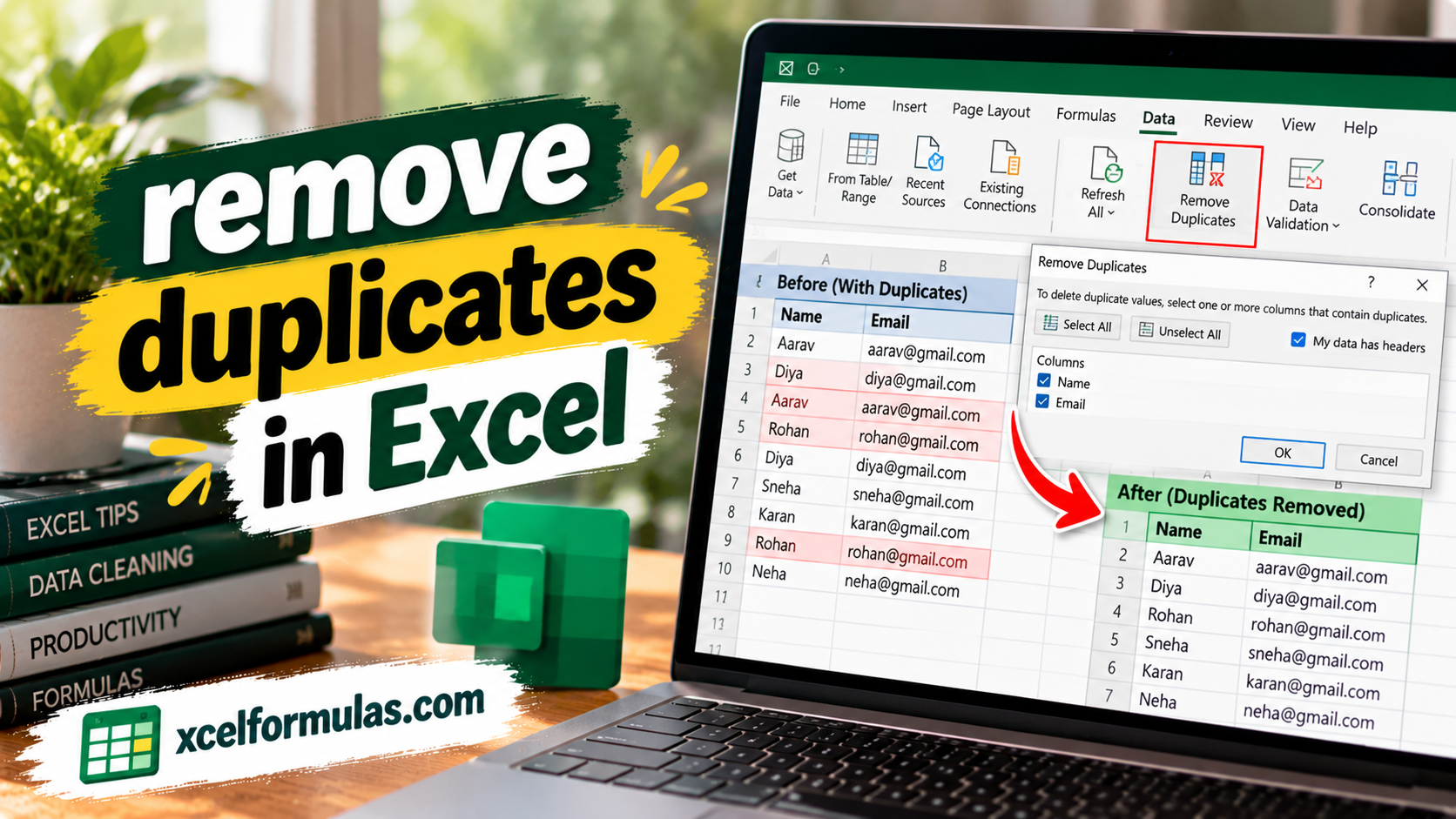
Inaccurate data can ruin even the best analysis, and one of the biggest reasons behind inaccurate spreadsheet data is duplicate entries. A single duplicate can skew your results and produce completely wrong conclusions, making it essential to know how to effectively find and remove duplicate entries. Whether you are dealing with repeated rows or duplicate values in a single column, cleaning your data is a vital step before diving into analysis.
Conditional Formatting and the Built-In Tool
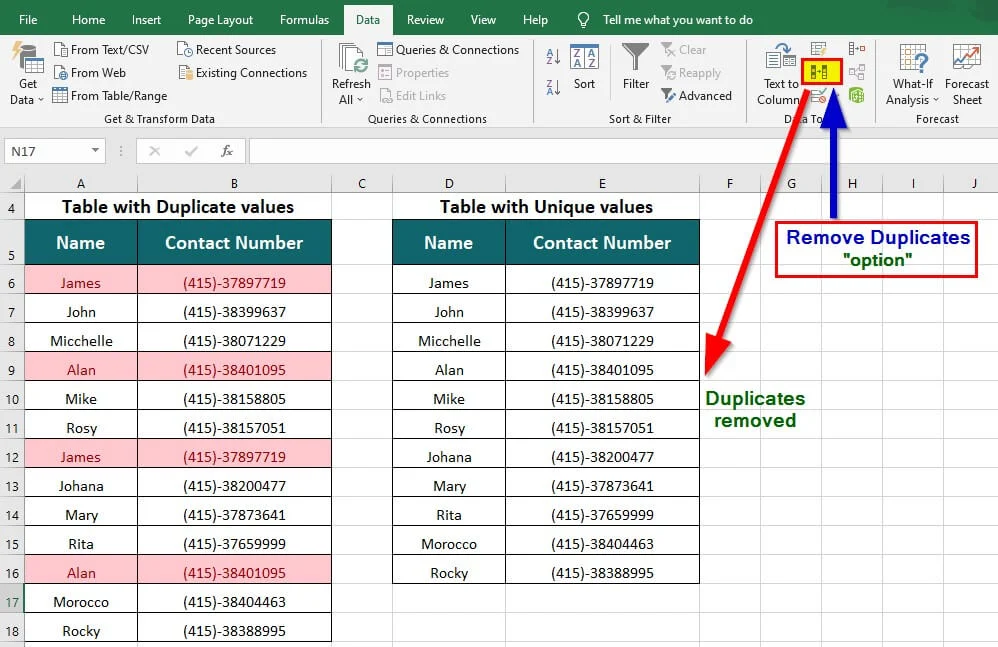
- Method 1: Conditional Formatting: You can use the Conditional Formatting feature to highlight duplicates or unique values before deciding whether to remove them. Select your range, navigate to Home > Conditional Formatting > Highlight Cells Rules > Duplicate Values, choose your preferred highlight style from the dialog box, and click OK to instantly spot repeating data.
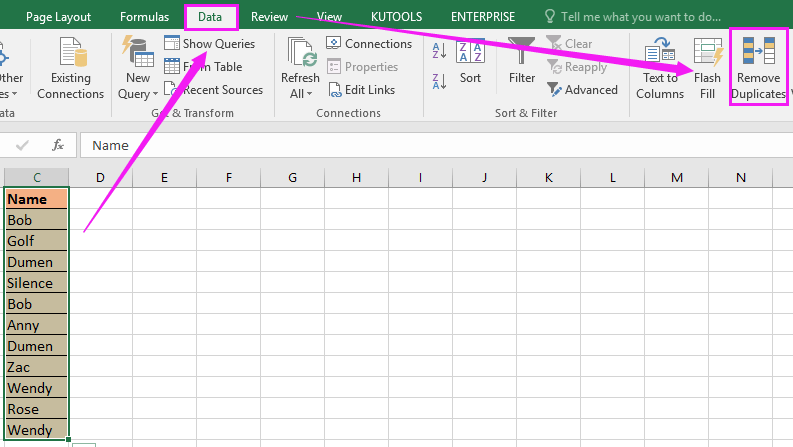
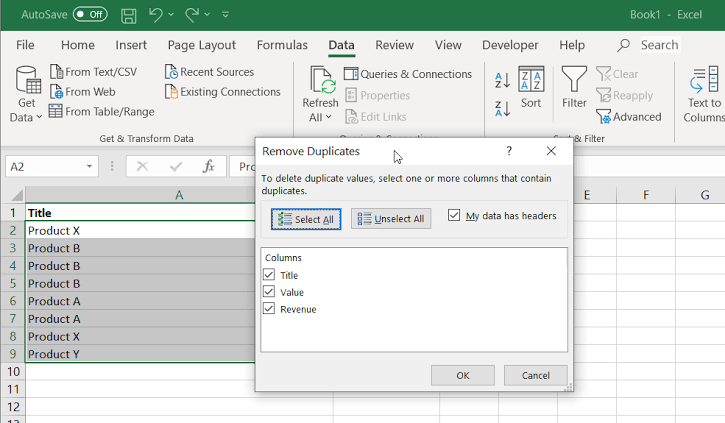
- Method 2: Remove Duplicates Feature: For permanent cleanup, select your data range, navigate to the Data tab under Data Tools, and click Remove Duplicates. Check the box if your data has headers, select the specific columns to check, and Excel will automatically strip out identical rows while reporting the total unique entries remaining.
Advanced Filters and Formula-Based Cleanup
- Method 3: Advanced Filter Option: To extract unique values without altering your original dataset, go to the Data tab under Sort & Filter and click Advanced. Select Copy to another location, specify your destination range in the “Copy to” field, check the Unique records only box, and click OK to populate clean data elsewhere.
- Method 4: Formulas with COUNTIF: For dynamic duplicate management, you can combine columns using
&orCONCATENATE()(e.g.,=A2&B2&C2) and apply aCOUNTIF()function (e.g.,=COUNTIF(D2:D18, D2)) where a count of 1 represents unique values and counts of 2 or more flag duplicates. You can then apply a standard filter to keep only unique entries.
Power Query Automation and Troubleshooting
- Method 5: Power Query: Perfect for large datasets and future data refreshes, select your table, go to the Data tab under Get & Transform Data, and click From Table/Range. Inside the Power Query editor window, select Remove Duplicates for specific columns or the entire table, then click Close & Load to return the modified dataset to Excel.
- Troubleshooting & Best Practices: Hidden spaces, non-printable characters, or case sensitivity can disrupt duplicate detection. Use
=CLEAN(TRIM(A1))to clear extra text, and apply=UPPER(),=LOWER(), or=PROPER()to standardize text casing before running your duplicate removal process.
Cleaning up duplicates in Excel is a fundamental step that ensures your data analysis remains accurate and reliable. Whether you prefer quick built-in buttons, advanced filters, custom formulas, or automated Power Query workflows, utilizing the right method for your specific dataset will streamline your productivity and safeguard your conclusions.