A drop-down list in Excel allows users to select values from a predefined list, ensuring data consistency and accuracy. It’s created using the Data Validation feature, enhancing efficiency by limiting input choices and reducing errors in data entry.
- Data Accuracy: Limits entries to specific options, reducing inconsistencies (e.g., “Apple” vs. “apple”).
- Efficiency: Speeds up data entry by allowing selection instead of typing.
- Error Reduction: Minimises types and invalid entries.
Method 1: Creating a Drop-Down List From Existing Data
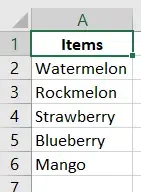
This method uses data already in a worksheet, ideal for dynamic lists that update automatically when source data changes (e.g., a list of product names).
Step 1: Select the Target Cells
Click on the cell where we want the drop-down list to appear. This is where users will select their options.
Step 2: Go to the Data Tab and Click Data Validation
- Go to the Data tab at the top of Excel.
- In the Data Tools group, click on Data Validation . This will open the Data Validation dialog box.
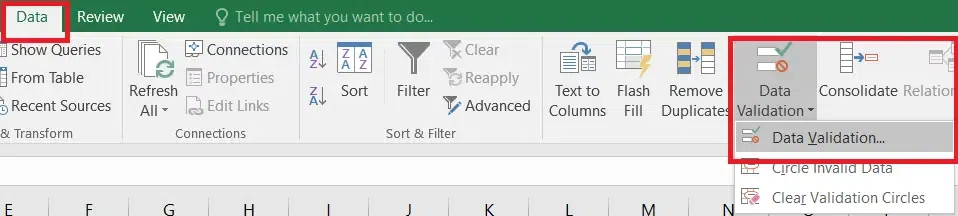
Step 3: Choose “List” as the Validation Criteria
- In the Data Validation dialog box , under the Settings tab, click the Allow box and select List . This tells Excel to create a drop-down list in the selected cell.
.webp "Click to enlarge")
Step 4: Enter the Source Range
In the Source field, we can either:
- Type the range manually : For example, type
=$A$2:$A$6if our list is in cells A2 to A6 .
.webp "Click to enlarge")
- Select the range with our mouse : Click the small icon next to the Source field, then highlight the cells we want to include (e.g., A2:A6 ).
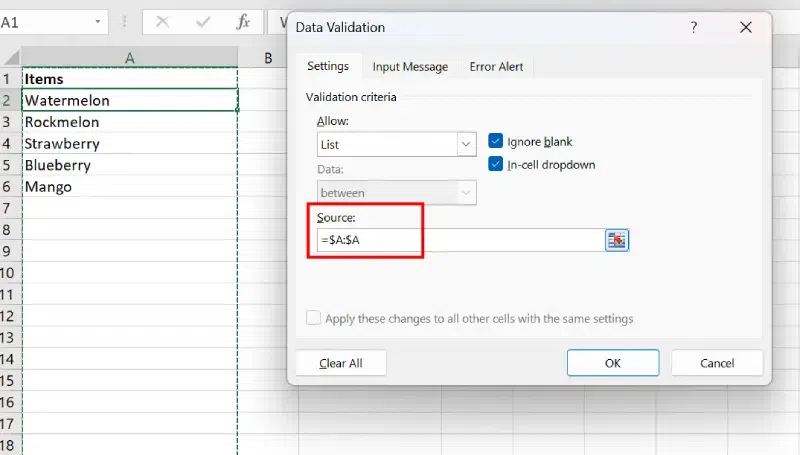
This will then embed a drop-down list.
Step 5: Confirm and Apply the Drop-Down List
- Ensure that the In-cell dropdown box is checked (it is checked by default). If this option is unchecked, the drop-down arrow won’t appear, but we can still manually enter values from the list.
- Click OK to embed the drop-down list.
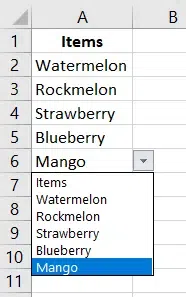
Step 6: Preview the Drop-Down List in Excel
- Click on the cell where we applied the drop-down to test it.
- The arrow will appear, and we can select from our list of options.
Note: To copy and paste a drop-down list, select the cell containing the drop-down list, press CTRL + C to copy, then select the target cell and press CTRL + V to paste.
3. Allowing Other Values in Excel Drop Down List
To allow users to input values outside the drop-down list follow the given steps:
Step 1: Open Data Validation and Access the Error Alert Tab
Navigate to the Data tab in the Excel ribbon, then click on Data Validation in the Data Tools group. In the Data Validation dialog box, click on the Error Alert tab.
Step 2: Uncheck the Option
Uncheck the box labeled “Show error alert after invalid data is entered.” and Click OK to save the changes.
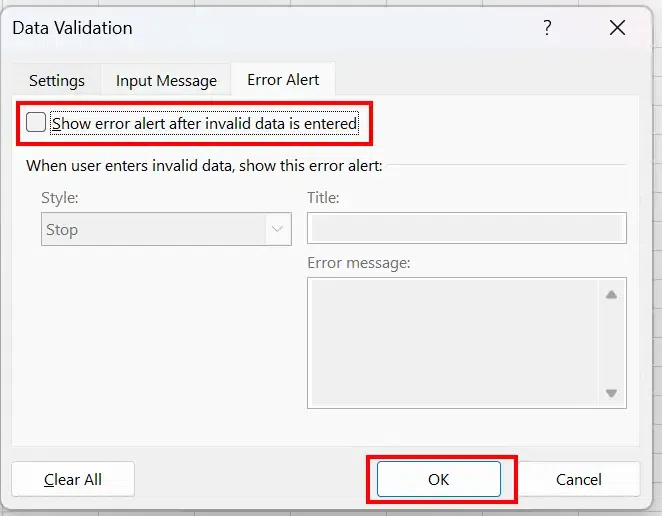
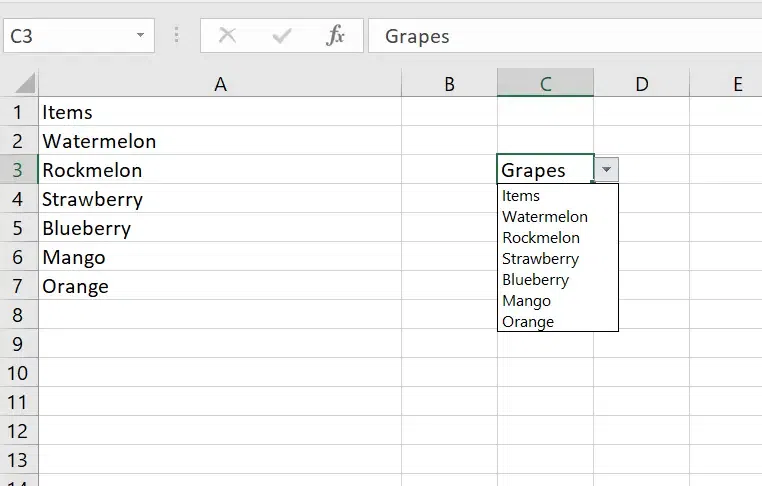
Now, we can enter values outside of the drop-down list in that cell. For example, if we type “Grapes” (which isn’t in the list), it will be accepted without an error message.
Method 2: Create a Drop-Down List Manually
This method involves typing list items directly, suitable for small, fixed lists (e.g., “Yes, No”).
Here are the following steps to manually create a Drop-Down List :
Step 1: Select the Cell
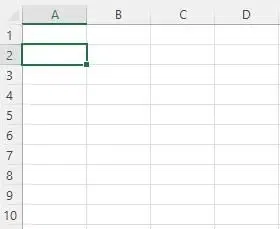
First, select the cell where we want the drop-down list to appear. For this example, let’s assume we’re selecting cell A2.
Step 2: Open the Data Validation Menu
Go to the Data tab in the Excel ribbon. In the Data Tools group, click on Data Validation.
.webp "Click to enlarge")
Step 3: Choose ‘List’ as the Validation Criteria
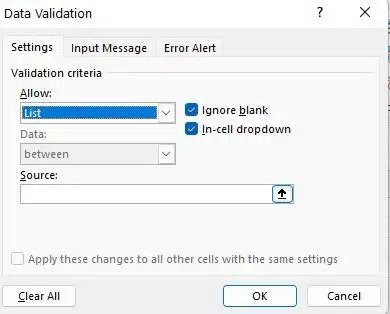
In the Data Validation dialog box, under the Settings tab, select List as the validation criteria. After selecting List, the Source field will appear.
Step 4: Enter the Items for the Drop-Down List
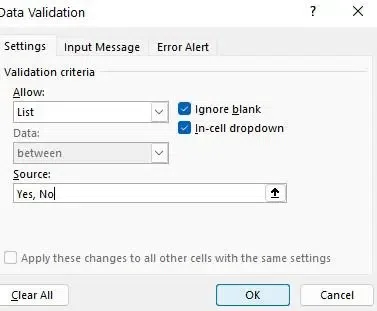
In the Source field, manually enter the items for our drop-down list, separated by commas. For example, if we want a list of Yes and No options, type: Yes, No
These items will appear as selectable options in the drop-down menu in the chosen cell.
Step 5: Confirm the Drop-Down List Setup
Make sure the In-cell dropdown box is checked. Click OK to finalize the drop-down list creation.
our drop-down list will now appear in the selected cell, with the options Yes and No available for selection.
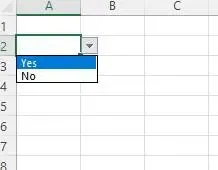
This will make a drop-down list in the chosen cell. Every one of the things recorded in the source field, isolated by a comma, is recorded in various lines in the drop-down menu.
Note: If we need to make drop-down records in different cells at one go, select every one of the cells where we need to make it and afterward follow the above advances.