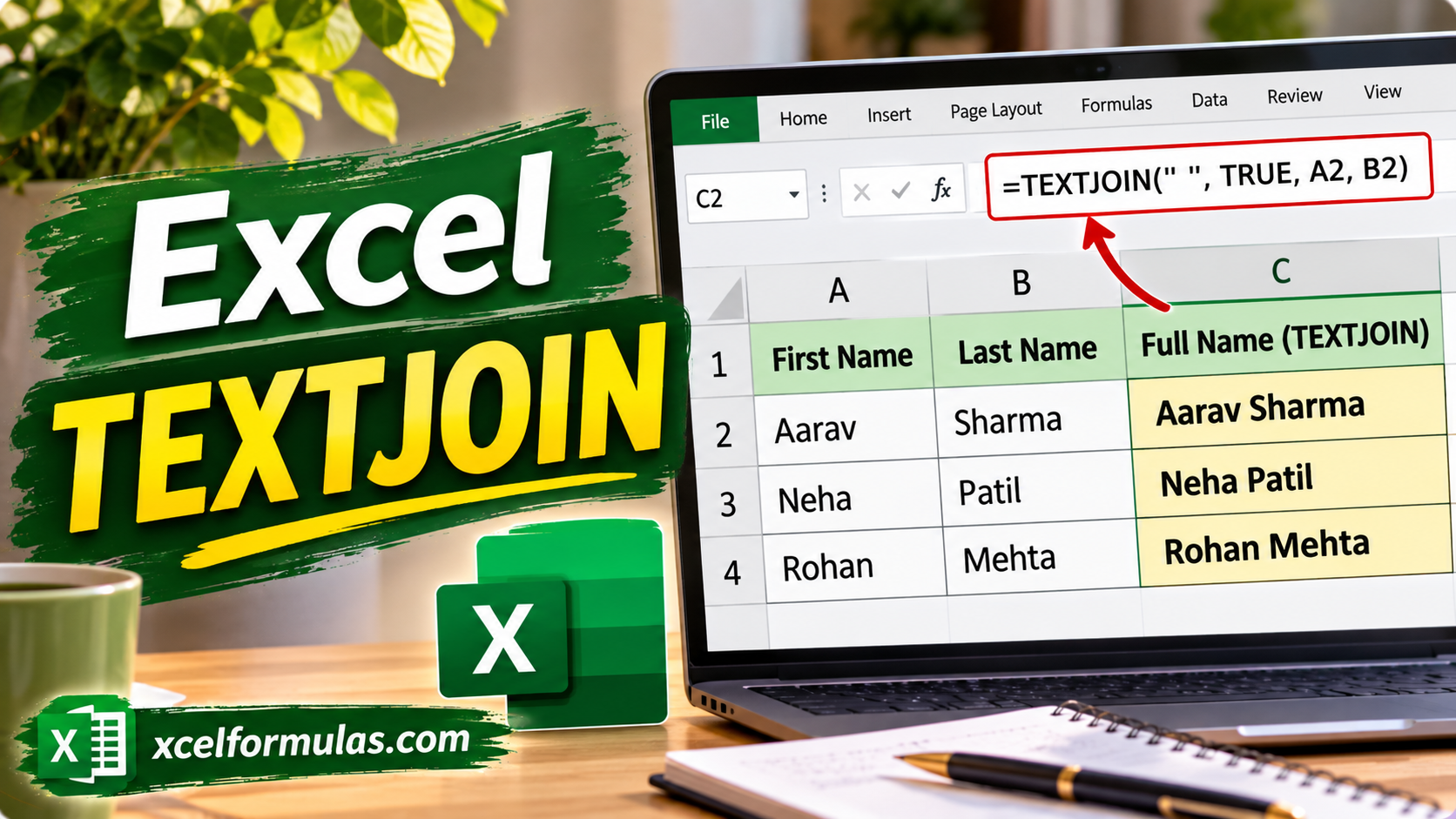
Building well-formatted text from Excel data is a common need, but stringing values together can get messy. Excel’s TEXTJOIN() function offers a straightforward solution, letting you pull together ranges of text using a delimiter and even skip empty cells.
In this article, I’ll walk through the basics of TEXTJOIN(), see how it compares to similar functions like CONCAT() and CONCATENATE(), and work through practical scenarios where it shines. As we go, I’ll argue for TEXTJOIN() because I believe it is now the better tool for combining text, and I think that at the end of the article you will be convinced, also.
How Excel TEXTJOIN() Works
Let’s first get clear on what TEXTJOIN() actually does and why its syntax is so much more flexible than what came before.
At its core, TEXTJOIN() lets you join together text values from several cells, inserting a delimiter (like a comma, space, or semicolon) between them. Unlike older approaches, it can process a full range at once, and you get to decide whether to ignore blanks.
Here’s the syntax:
=TEXTJOIN(delimiter, ignore_empty, text1, [text2], ...)Powered By delimiter: The character(s) you want between each piece of text (often a comma, space, etc.)ignore_empty: TRUE to skip blank cells, FALSE to include themtext1, [text2], …: The cells, ranges, or values you want to combine
For example, suppose you’ve got values in A1, A2, and A3. You want to join them, separated by commas, while skipping blanks:
=TEXTJOIN(",", TRUE, A1:C1)Powered By 
If A2 is empty, you’ll get just the values from A1 and A3, separated by a comma.
Why does this matter? Other functions (I’m thinking about CONCATENATE()) make you list each cell separately, and they don’t skip blanks. TEXTJOIN() is shorter to type and much easier to maintain.
TEXTJOIN() vs. CONCATENATE() vs. CONCAT()
Now that we’ve covered the basics of TEXTJOIN(), it’s worth seeing how it compares directly to older Excel text functions. If you’ve used CONCATENATE() or CONCAT(), you might be wondering why you’d switch.
TEXTJOIN(): Lets you specify a delimiter and easily skip blanks. Accepts ranges.CONCAT(): Joins ranges or individual text cells, but you can’t specify a delimiter. It doesn’t skip blanks.CONCATENATE(): The oldest option. Forces you to specify each cell one by one. No delimiter field, no range support.
As an example, let’s join values in B1, B2, and B3 with a semicolon between each. Here’s how the different functions look:
=TEXTJOIN(";", TRUE, A1:C1)Powered By 
=CONCAT(B1:D1)Powered By =CONCATENATE(B1, C1, D1)Powered By Note how TEXTJOIN() is the only one that lets you choose a delimiter without extra fuss. With CONCAT() or CONCATENATE(), if you want delimiters, you’d have to manually add them in:
=B1 & ";" & C1 & ";" & D1Powered By 
Also, and maybe equally as important, depending on how your data is structured, if any cell is blank, TEXTJOIN() can skip it for you. CONCATENATE() and CONCAT() will include the blank.
Handling Delimiters and Empty Cells
Allow me to talk a little more about these two common pain points: adding consistent delimiters and ignoring blank cells.
Custom delimiters
You likely want different delimiters for different cases. You might want commas, pipes, newlines, or even other kinds of characters as separators.
To join with a vertical bar, use this:
=TEXTJOIN("|", TRUE, D1:G1)Powered By 
You can also do more niche things. Here, I’m using a space-dash-space as a separator:
=TEXTJOIN(" - ", TRUE, D1:G1)Powered By 
You could even use CHAR(10) for a line break, though you’ll need to turn on Wrap Text in the cell formatting to see the effect.
Skipping blanks
One of the most frustrating things in data assembly is handling blanks. TEXTJOIN() puts you in control. Set the ignore_empty argument to TRUE, and blanks are left out entirely.
=TEXTJOIN(", ", TRUE, E1:G1)Powered By 
Result: “Red, Blue”. The empty cell (F2) is ignored, so you don’t get an extra comma.
If you set ignore_empty to FALSE:
=TEXTJOIN(", ", FALSE, E1:G1)Powered By 
Now the result is: “Red, , Blue”. That extra comma stands out (and usually isn’t what you want). In my experience, TRUE is usually best.
All this might seem like a small difference, but if you practice this function a bit, you will save time on post-process cleanups.
Building Dynamic Lists and Labels
Now that you’ve seen the basics, let’s explore ways TEXTJOIN() can solveproblems. I’ll focus on two scenarios you’re likely to encounter: creating dynamic summaries and assembling labels from variable data.
Creating summaries from user input
Suppose you’re gathering survey responses where users answer Yes/No to a set of optional questions. Only some will answer, so the results are spread across F1 to J1.
If you want to list only the questions they answered “Yes” to, you can use TEXTJOIN() in combination with IF() and FILTER() (with dynamic arrays in newer Excel versions).
Suppose G1:G5 has the question text, F1:F5 has corresponding Yes/No:
=TEXTJOIN(", ", TRUE, FILTER(F2:J2, F1:J1="Yes"))Powered By 
Now your output cell lists only the questions the user said “Yes” to, separated by commas.
If you don’t have dynamic arrays, you can build a helper column that outputs the question text only if the answer is Yes, then join that helper range with TEXTJOIN().
Building custom labels from variable data
Imagine you’re preparing shipping labels from a table where some fields (like “Apartment” or “Suite”) are sometimes blank. You want to join address components into a single line.
If your address is in H1 (“123 Main St”), H2 (“Apt 4B” or blank), H3 (“Springfield”), H4 (“IL”), H5 (“62704”), you’d use:
=TEXTJOIN(", ", TRUE, H1:L1)Powered By 
If H2 is blank, your output is still clean (no double commas!) because TEXTJOIN() skips the empty cell.
These are common examples, but the same logic applies anywhere you’re merging data with optional fields or conditional inclusion.
Other Things to Consider
As convenient as TEXTJOIN() is, there are a few minor things:
Using multiple ranges with TEXTJOIN()
One thing to know about TEXTJOIN() is how it handles multiple ranges. You can pass in more than one range even if they’re not next to each other, just solong as you list them separately:
=TEXTJOIN(", ", TRUE, B1:D1, B2:D2)Powered By 
This works just fine. Excel will combine the values from both ranges and join them. Just remember: You can’t write them as a single array like (A1:A3,C1:C3). You need to list each range as its own argument.
Nested functions and dynamic arrays
If you’re using TEXTJOIN() as part of a dynamic array formula (like with UNIQUE() or FILTER()), remember that your delimiter and ignore_empty arguments should still be single values. Using arrays there will return a #VALUE! error.
Delimiters and final formatting
Sometimes, you want no delimiter (you just want to jam all the text together). Set the delimiter to "" (meaning an empty string):
=TEXTJOIN("", TRUE, A1:C1)Powered By 
Just be aware: if you skip the delimiter, you lose the function’s main advantage over CONCAT().
If you want to create lists for use outside Excel (like CSV uploads), watch out for extra spaces, unexpected line breaks, or character encoding (especially if you’re using symbols or Unicode).
Related Functions and Advanced Techniques
As you get comfortable with TEXTJOIN(), you might start wondering how it fits with other “dynamic” Excel functions. Often, combining it with UNIQUE(), FILTER(), or SORT() makes it even more powerful.
For example, say you want to join all unique product categories from a list:
=TEXTJOIN(", ", TRUE, UNIQUE(TRANSPOSE(A1:E1)))Powered By 
Note: UNIQUE() is column-oriented by default in Excel. Because I was working with a row, I also had to use TRANSPOSE().
Or, you want only those that meet a certain condition:
=TEXTJOIN(", ", TRUE, FILTER(A1:C1, A2:C2="Active"))Powered By 
Both examples show how TEXTJOIN() can summarize or report data without helper columns or manual filtering.
If you’re still using CONCATENATE() or manually stringing cells together, making the switch to TEXTJOIN() will save you time. (I promise!)
Also, I want to add that learning TEXTJOIN() gets you comfortable thinking in ranges. This is a mindset that pays off when you use Excel’s dynamic array functions and other more modern approaches. Take our Advanced Excel Functions course to keep learning.