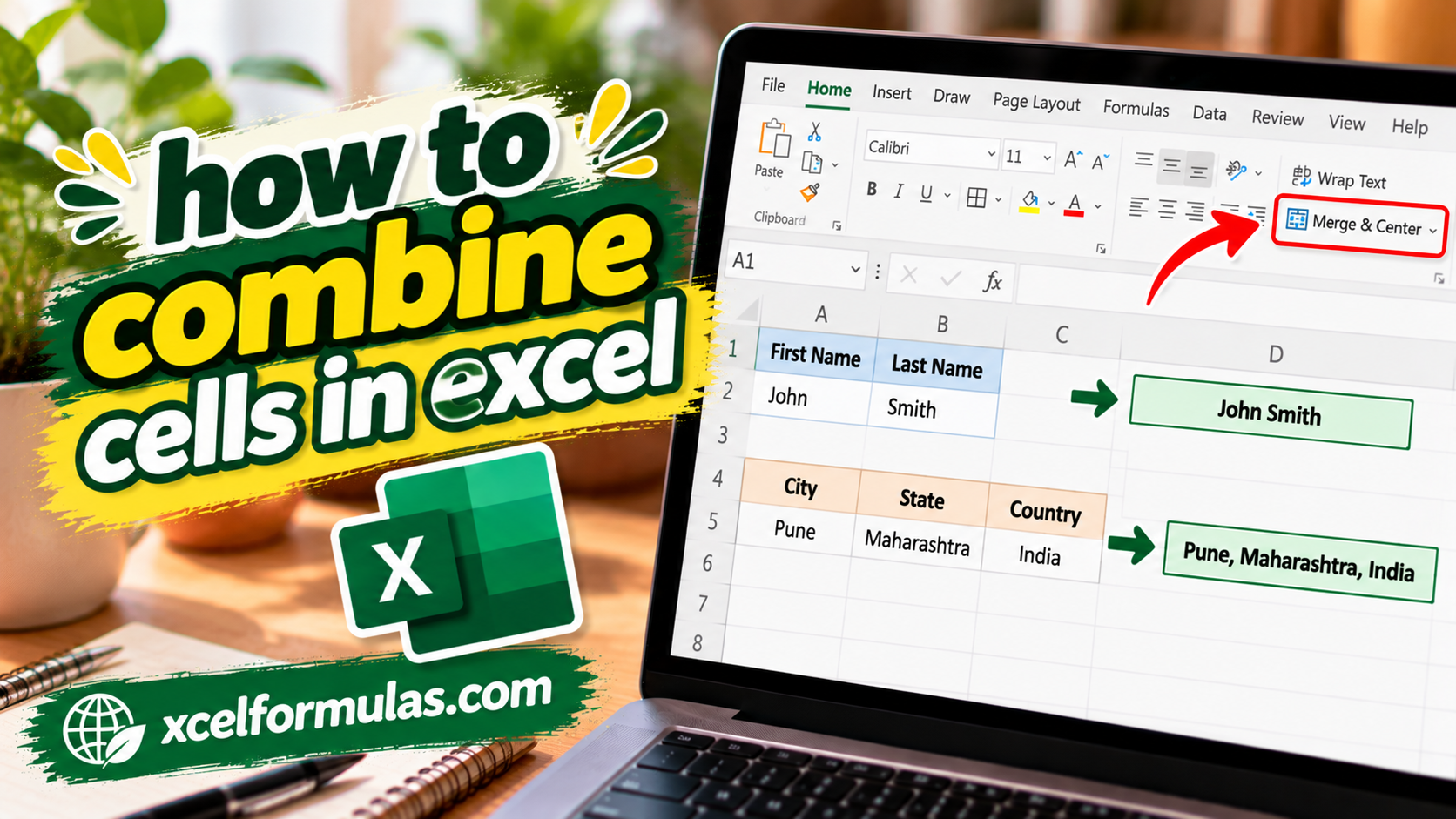
How to combine cells in excel can be accomplished in two main ways: by joining their contents with formulas or by merging them for visual formatting. Formulas join the actual data, while merging only changes visual alignment. We often combine cells when we work with names, addresses, reports, or table headers, with each method serving a different purpose.
How to combine cells in excel ensures you can choose the right approach for your dataset. Whether you use the concatenation operator (&), text functions like CONCAT() and TEXTJOIN(), visual merging, or the cleaner Center Across Selection alternative, mastering these techniques streamlines your data preparation.
How to Combine Cells in Excel Using Formulas (Recommended)
To combine cells using formulas, let’s look at a simple example:
Assume we have a dataset where column A contains First Name and column B contains Last Name. We want both names to appear together in a single cell.
To do so, create a helper column:
- Go to column C
- Click C1
- Type Full Name as the header
Next, click cell C2 and enter this formula:
=A2 & " " & B2Powered By Here is what the formula does:
A2pulls the first name" "adds a space between the namesB2pulls the last name&joins everything into one text value
Press Enter to see the combined name.
Now move your cursor to the small square at the bottom right corner of the cell. This is called the fill handle. Drag it down to apply the formula to the rest of the rows. Excel will automatically adjust the cell references for each row.
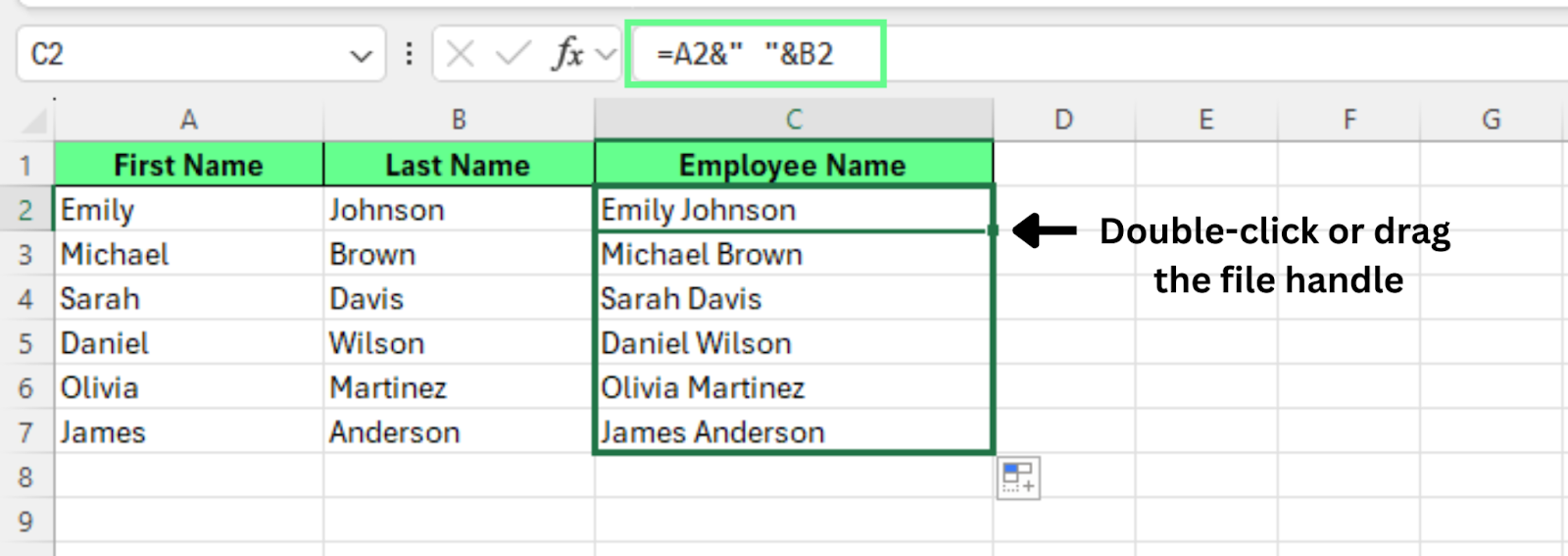
This method joins the contents of multiple cells while keeping the original data unchanged. Because formulas do not overwrite values, they are the most reliable way to combine text in Excel.
How to Combine Cells in Excel Using Built-In Text Functions
To combine cells using built-in text functions, you can use either of these two options:
CONCAT()orCONCATENATE()combine values from multiple cells into one result.TEXTJOIN()combines cells while letting us define a delimiter and ignore empty cells.
Let’s look at both methods with simple examples.
Using the CONCAT() or CONCATENATE() function
CONCAT() and CONCATENATE() join text from multiple cells into a single value.
To use them:
- Create a helper column
- Click cell C2
- Enter one of these formulas:
=CONCATENATE(A2," ",B2)=CONCAT(A2," ",B2)
- Press Enter
- Drag the fill handle down to apply the formula to other rows
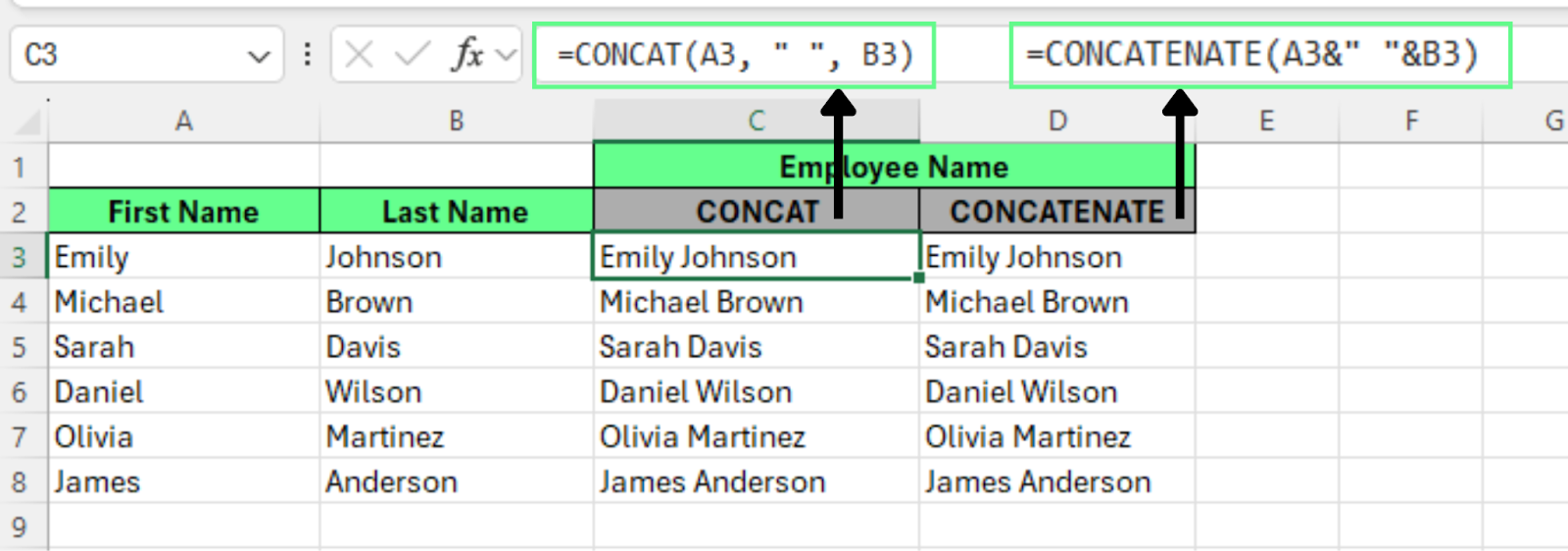
Both functions return the same result. They combine the first name and last name with a space between them. The formulas stay clear and easy to edit if you add more columns later.
Use TEXTJOIN() to combine cells with a delimiter
TEXTJOIN() offers more control. We can define a delimiter and instruct Excel to skip empty cells.
Assume we want to combine the Name and Country with a comma between them. To do so:
- Create a helper column
- Click cell C2
- Enter this formula:
=TEXTJOIN(",",TRUE,A2,B2)
Here’s how this would work:
","is the delimiter. You can use a space, comma, dash, or any characterTRUEtells Excel to ignore empty cellsA2, B2are the cells we combine
Press Enter, then drag the fill handle down to apply the formula to the rest of the rows.
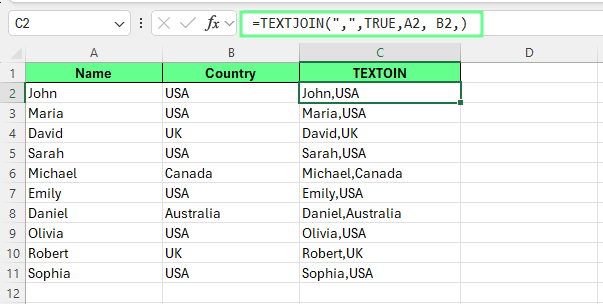
Note: You can specify only one delimiter in a TEXTJOIN() formula. If different parts of the text need different delimiters, you will need separate helper columns.
Which works best? Formulas or built-in functions?
Both approaches work, but built-in text functions scale better. When the dataset grows, we only update the range inside the function. We do not need to rewrite long formulas.
Functions such as CONCAT() and TEXTJOIN() also reduce errors because Excel handles spacing and empty cells more cleanly.
How to Merge Cells in Excel (Visual Combination Only)
To merge cells visually:
- Select the cells you want to merge. For example, select A1 to D1. Place the main value in the top left cell before you merge
- Go to the Home tab
- In the Alignment group, click Merge & Center
- Open the drop-down menu and choose one of these options:
- Merge & Center
- Merge Across
- Merge Cells
- Unmerge Cells
- If Excel shows a warning message, click OK to continue
Excel will merge the selected cells into one larger cell.
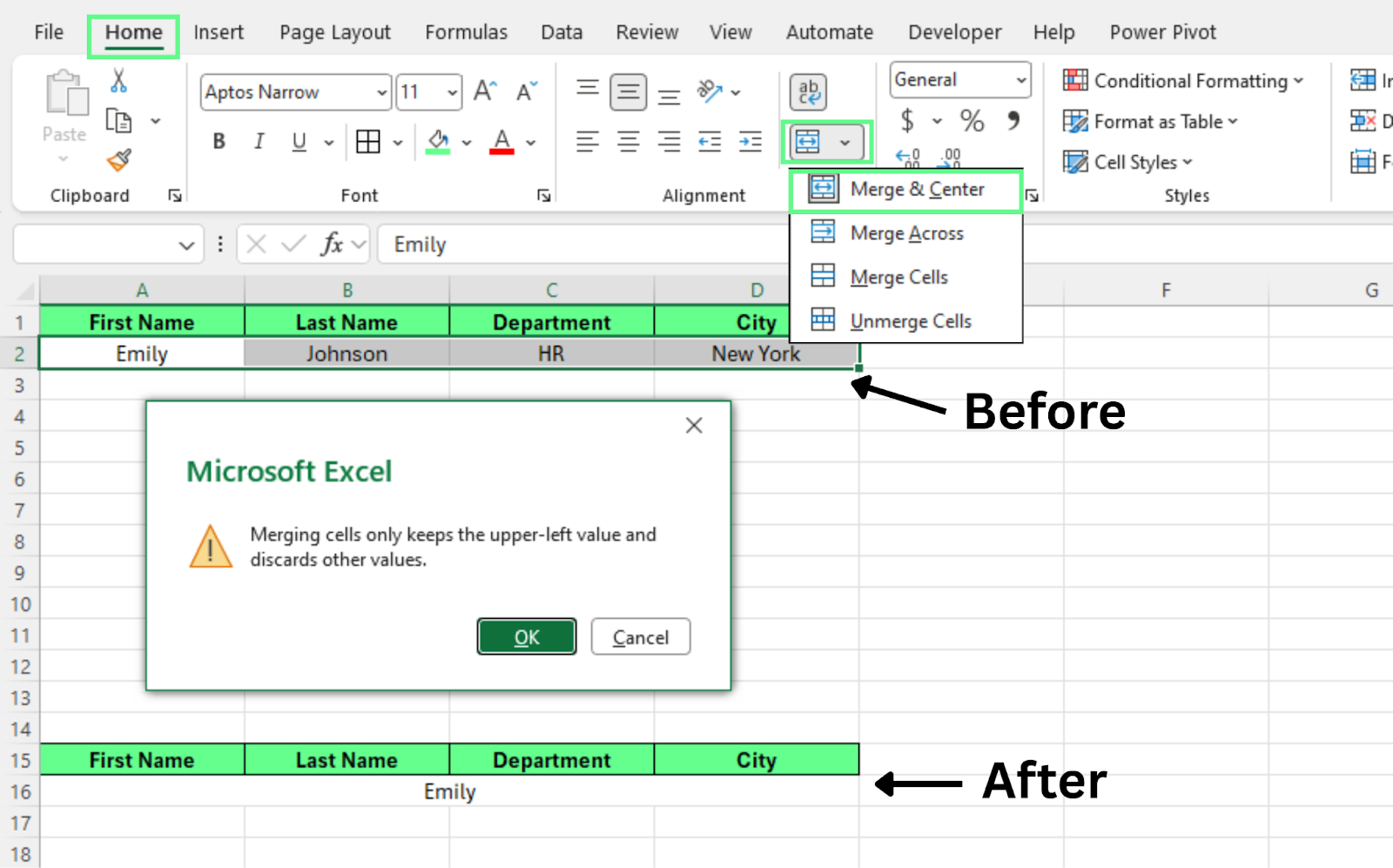
This feature changes the layout of the worksheet, but it does not combine the actual data. When we merge cells visually, Excel keeps the value from the top left cell and removes any other values in the selected range.
Key Differences Between Merge Cells and Combine Cells in Excel
In Excel, people often use the terms merge and combine as if they mean the same thing. However, they refer to different actions. One changes the data. The other changes the layout.
Let’s look at the differences between the two methods.
Combine cells using formulas
When we combine cells with formulas such as &, CONCAT(), or TEXTJOIN(), Excel joins the contents while keeping the original data intact.
This method:
- Preserves all values
- Keeps the original cells unchanged
- Works with sorting and filtering
- Supports formulas and calculations
- Handles large datasets safely
- Fits most data processing tasks
Because the data remains intact, formulas provide the safest approach for real work.
Merge cells using the Merge tool
When we merge cells with Merge & Center, Excel creates one larger cell across multiple columns — it does not combine the values.
This method:
- Keeps only the value in the top left cell
- Deletes other values in the selected range
- Creates problems with sorting and filtering
- Can break formulas that reference the cells
- Serves mainly for formatting and layout
After we merge cells, Excel treats the selected range as one large cell.
Quick comparison: merge cells vs combine cells
Here is a quick side-by-side comparison of both methods:
| Feature | Combine Cells (Formulas) | Merge Cells (Merge Tool) |
| Keeps all data | Yes | No |
| Deletes values | No | Yes |
| Works with formulas | Yes | No |
| Supports sorting | Yes | No |
| Good for analysis | Yes | No |
| Best use | Data processing | Layout and design |
When You Should (and Shouldn’t) Merge Cells in Excel
We should use Merge Cells only for layout and presentation. It works well for titles, headings, and other design elements. It does not work well inside real datasets because it can break sorting, filtering, and formulas. It does not work with data, so avoid merging.
Here is a quick guide to help you understand when to use it and when not:
| You Should Merge Cells When | You Shouldn’t Merge Cells When |
| Creating worksheet titles | Working with data tables |
| Designing report headers | Using formulas and functions |
| Adding section headings | Sorting or filtering data |
| Formatting dashboards | Analyzing records |
| Making cover pages | Creating financial reports |
| Building static templates | Preparing data for charts |
| Working on layout only | Automating tasks with macros |
Tip: When you feel unsure, use formulas instead of merging. Formulas keep the data intact and work better in most situations.
Center Across Selection: A Better Alternative to Merging Cells
Center Across Selection is an Excel alignment option that centers text across multiple cells while keeping each cell separate. The text appears visually centered across the selected columns, but Excel does not merge the cells. Because the cells remain independent, sorting, filtering, and formulas continue to work normally.
This makes Center Across Selection a better alternative to Merge & Center when you only want the visual effect of centered text without changing the worksheet structure.
To apply Center Across Selection:
- Select the cells where you want the text to appear centered. For example, select B5 and C5
- Press Ctrl + 1 to open the Format Cells window
- Open the Alignment tab
- In the Horizontal dropdown, choose Center Across Selection
- Click OK
Excel will now display the text centered across the selected cells.
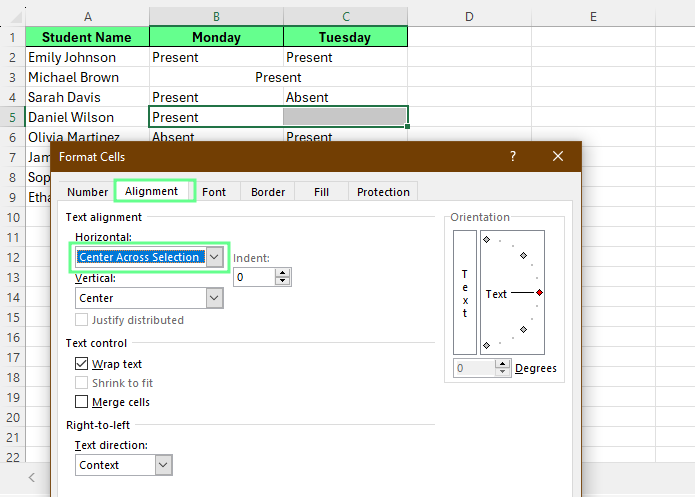
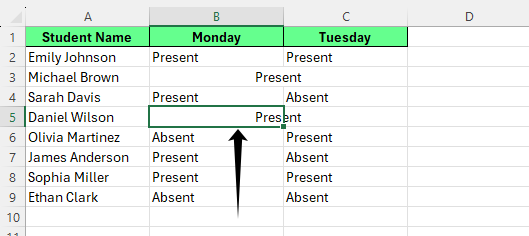
The result looks almost identical to merged cells. The text appears in the center across the selected columns, similar to Merge & Center.
However, the cells remain separate. You can confirm this by clicking each cell individually. Excel will select them one at a time instead of treating them as one merged cell.
Common Problems When Combining Cells in Excel
When we combine cells with formulas, a few common issues can appear. Most problems involve extra spaces or formula errors. We can fix them easily with the right functions:
1. Extra spaces appear in the combined text
Sometimes the result contains extra spaces. This usually happens when one cell already includes a space or when a value is missing.
We can fix this with the TRIM() function. It removes extra spaces and keeps only a single space between words.
This formula joins the values from A1 and B1 while cleaning up extra spaces in the final result.
2. Formulas show errors after combining
A formula may return an error if one of the referenced cells changes, becomes empty, or contains an unexpected value.
We can handle this with the IFERROR() function. It replaces the error with a clean result.
If Excel finds an error, the formula returns an empty result instead of displaying the error message. This keeps the worksheet clean and easier to read.
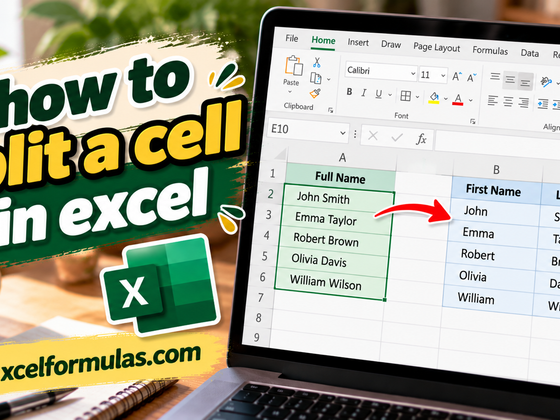
How to Split Combined Cells Back Into Separate Cells
To split combined text back into separate cells using Text to Columns feature:
- Select the column that contains the combined text
- Copy the column with Ctrl + C, then paste it in another column using Paste Values (Ctrl + Shift + V or right click and choose Paste Values)
- Go to the Data tab
- In the Data Tools group, click Text to Columns
- In the Convert Text to Columns Wizard, choose Delimited, then click Next
- Select the delimiter that separates your data, such as Space, Comma, or Tab, then click Next
- Choose General or Text, then click Finish
Excel will split the values into separate columns based on the delimiter you selected.
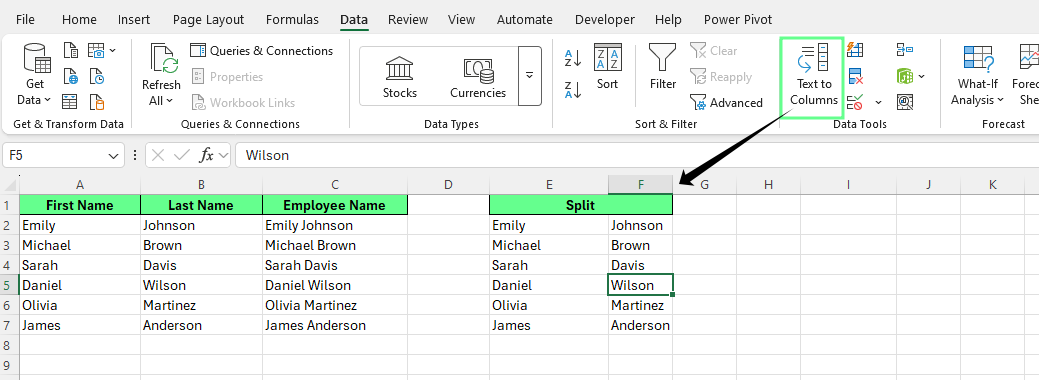
This Excel feature separates data based on a delimiter such as a space, comma, or tab. It works well when names, locations, or other values sit together in one cell.
Best Practices for Combining Cells in Excel
You should follow a few simple practices when combining cells in Excel. These habits keep the worksheet clean, reliable, and easy to update later:
- Use formulas to combine data whenever possible: Functions such as
&,CONCAT(), orTEXTJOIN()join values while keeping the original data intact and editable. - Avoid merging cells inside data ranges: Merged cells can interfere with sorting, filtering, and formulas.
- Keep raw data separate from formatting: When data and presentation stay separate, we can update or reuse the dataset more easily.
- Use merging only for layout and presentation: Merged cells work best for headers, titles, or visual sections, not for storing data.
- Apply formatting consistently across worksheets: Consistent styles make spreadsheets easier to read, maintain, and share with others.
Final Thoughts
To continue improving your Excel skills, explore our Data Preparation in Excel and Data Analysis in Excel courses. They teach practical skills for cleaning, organizing, and analyzing real datasets.
You can also keep quick references nearby while you work. Our Data Manipulation in Excel Cheat Sheet, Excel Formulas Cheat Sheet, and Excel Shortcuts Cheat Sheet provide handy summaries you can use while building or reviewing spreadsheets.