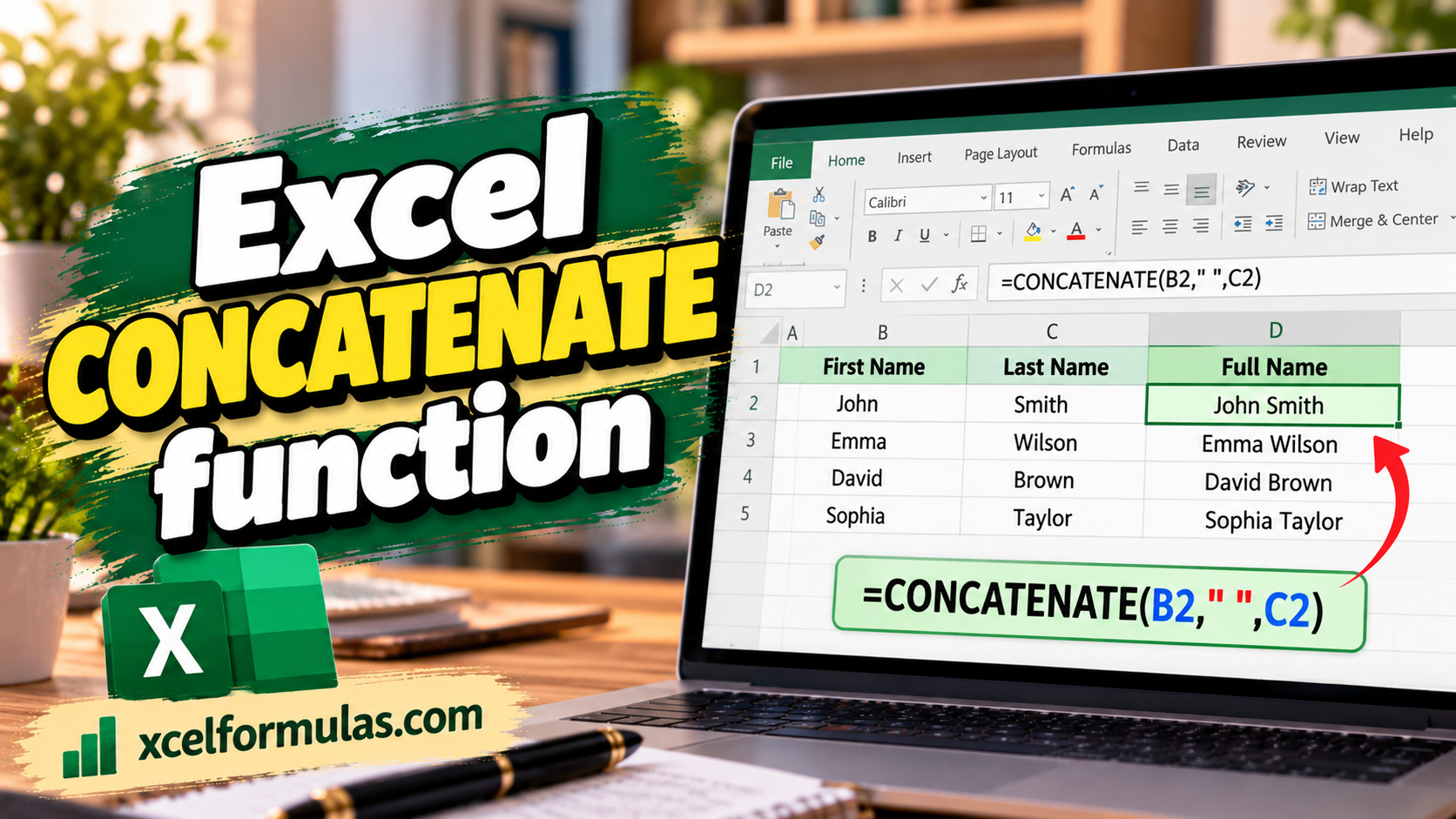
While the newer CONCAT function is widely used today, the traditional Excel CONCATENATE function remains a vital tool in spreadsheet management for joining separate text strings and cell values into a single string. Whether you need to transform raw data into human-readable sentences or reformat split columns into a unified text string, understanding how CONCATENATE works is essential.
CONCAT Function Syntax
The CONCAT function takes at least one argument (values separated by commas), but can take many more.
=CONCAT(argument_1, [argument_2], [argument_3]...)
Each argument is treated as a text value, and they are combined into one text string. Only one argument is required, but the function can accept up to 253 arguments. It can accept strings of text (enclosed in quotes), single cell references, or a range of cells as arguments. Any numerical arguments will simply be converted to text values. The maximum length of text that the CONCAT function can return is 32,767 characters, which is the limit of characters that a cell can hold in Excel.
Example of Excel CONCAT Function to Return a Sentence
Say you have the following table displaying data about your pets, and you want to return a human-readable sentence about the data.

=CONCAT("We have ", B2, " ", A2, " and ", B3, " ", A3)
This function converts the numerical values to text and returns “We have 3 cats and 2 dogs“.
Notice that we have to manually add spaces in our strings and between cell references. If we were to forget them and write =CONCAT(“We have”, B2, A2, “and”, B3, A3) then we would get the following result: “We have3catsand2dogs“.
To concatenate multiple values and automatically insert a common character between each argument (like a space), you can use Excel’s TEXTJOIN function.
Concatenate in Excel With &
If you don’t want to use the CONCAT function, you can manually concatenate values together with the “&” symbol.
Using the same pet table example above, you can write the following:
="We have " & B2 & " " & A2 & " and " & B3 & " " & A3
This returns the same result: “We have 3 cats and 2 dogs“.
Using the CONCAT Function to Reformat Data
In Excel you may be presented with all kinds of data in varying formats, so the CONCAT function can help you manipulate these values into the format you need. Say, for example, that you want a list of times in the hh:mm format, such as 10:30. The problem is that you’re given two separate columns: one column with the hour and one column with the minute.
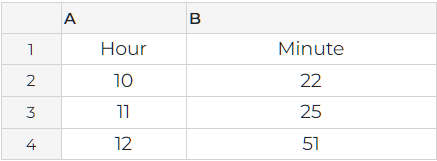
By concatenating the hours, a colon, and the minutes, you can change the data to the desired format. You can write the following function:
=CONCAT(A2, ":", B2)
If you write the function and copy it for each row, you’ll get the values “10:22”, “11:25”, and “12:51”. Note that these results will be in text format rather than in time format – everything CONCAT returns will be considered a string of text.
Concatenate a Range of Cells
You already know the CONCAT function in Excel can take text strings and individual cell references as arguments, but it can also take whole ranges of cells. If the range contains any blank cells, CONCAT will simply ignore the blanks. Take the following example with official state birds:
=CONCAT(A1:A4)
This CONCAT function returns the following string of text: “MinnesotaIowaSouth DakotaWisconsin“.

If an argument has multiple rows and multiple columns, Excel will read from left to right, then from top to bottom.
=CONCAT(A1:B3)
This CONCAT formula will return the following text: “MinnesotaLoonIowaGoldfinchSouth DakotaPheasant“.
Again, notice that CONCAT does not include a space (besides the space already in South Dakota) or any kind of separator between the arguments as it joins them together. The TEXTJOIN function can do this automatically.