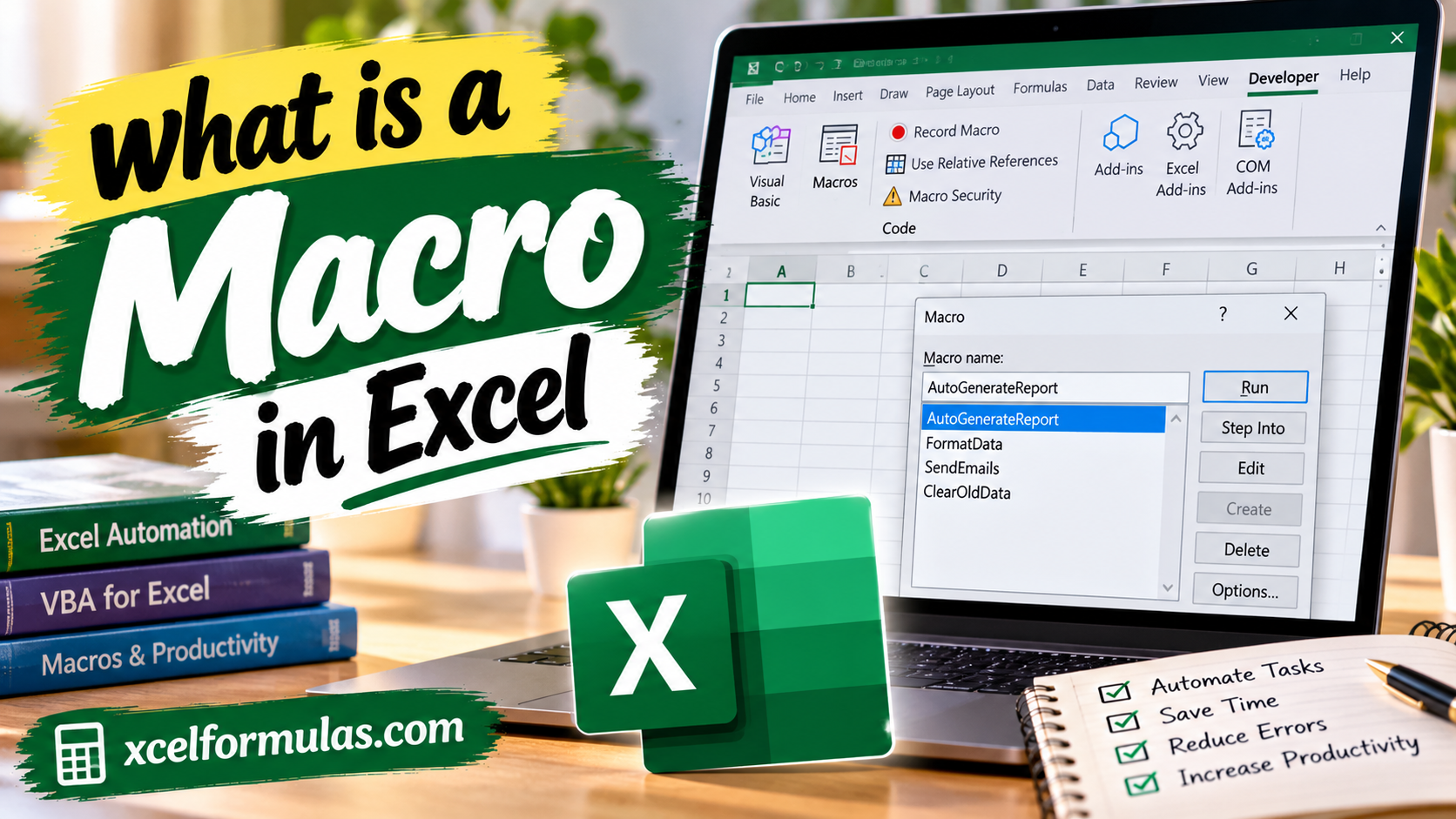
A macro in Excel is a saved sequence of actions that the software can replay on command to eliminate repetitive manual work. Running on a built-in programming language called VBA (Visual Basic for Applications), a macro captures your clicks, keystrokes, and formatting changes so that tasks like data cleanup, report generation, and bulk calculations can be executed in a matter of seconds rather than hours.
Pretty much anything you can do by hand in Excel can be automated with a macro, from applying consistent header styles across twelve different sheets to trimming whitespace and fixing text capitalization across thousands of rows. However, it is critical to note that standard Excel files cannot store these automations; you must save your work as a macro-enabled workbook (.xlsm) or Excel will automatically remove your saved sequences upon closing.
The Macro Recorder Method

The simplest way to create an automation without writing a single line of code is by using Excel’s built-in Macro Recorder. Accessible via the Developer tab, this tool watches you perform a task—such as bolding a header row and highlighting specific revenue cells in green—and automatically generates the corresponding VBA code in the background while you click.
Advanced Automation with VBA

For more complex operations that the recorder cannot handle, such as looping through every sheet in a workbook or applying complex conditional logic, users can write or edit the code directly in the VBA Editor. Accessed by pressing Alt + F11 on Windows or Fn + Option + F11 on Mac, this editor allows you to insert modules and write specific programming instructions, opening up far more advanced automation capabilities for your datasets.
Troubleshooting and AI Alternatives

When working with macros, the most frequent hurdle is Excel’s default security settings, which automatically disable macros to protect your computer against harmful code from unknown sources. Users must actively click “Enable Content” on a yellow warning bar to run their scripts, and should always double-check their VBA code for mismatched sheet names if they encounter a frequent “Subscript out of range” error.
Finally, for those who want to skip the coding process entirely, AI agents like GPT for Work can now write complete VBA scripts based on simple, plain-language prompts. These AI tools can even operate directly within the spreadsheet to handle bulk translations, content generation, and web research, performing complex data analysis that traditional, rule-based macros simply cannot process on their own.